Game Master guide
Everything the organiser of a game does on gridtac.com: set the game up, put it on the map, invite the players, start it, run it, and look back at it afterwards. Use a laptop or a tablet; the game screens ask for a larger screen than a phone.
The pictures on this page are taken by a script from the live screens, so they show what you will see. The game in them is a made-up one. Map data © OpenStreetMap contributors.
Who can do what
A game has an owner (who made it), and the owner can add co-owners and referees. In the game itself players have a rank: commander, platoon leader, squad leader or soldier. A player can also be made a map operator, who may draw on the map.
The bar at the top of every game screen has a switcher with the workspaces your role may open:
| Role | Workspaces |
|---|---|
| Owner, co-owner | Command, GM, Setup, Map |
| Referee | Command, GM |
| Commander, platoon leader, squad leader | Command |
| Map operator | Command, Map |
| Soldier | none: soldiers play in the app |
- Setup is where the game is prepared.
- Map is where the play area, the zones and the map overlay are drawn.
- GM is where you run a live game.
- Command is the commander's map. A GM sees every side there and can pick View as to see one side's picture. A GM who also plays on a side keeps every GM tool and starts as their own team (marked "your team"); All teams gives the full picture back. See the Commander guide.
The switcher only moves you between screens. The server checks every change against your role, so a button you can see but may not use answers with the reason.
A referee can run the live game but not change its setup: no deleting zones, no changing timers or tickets, and no Setup or Map.
Your games
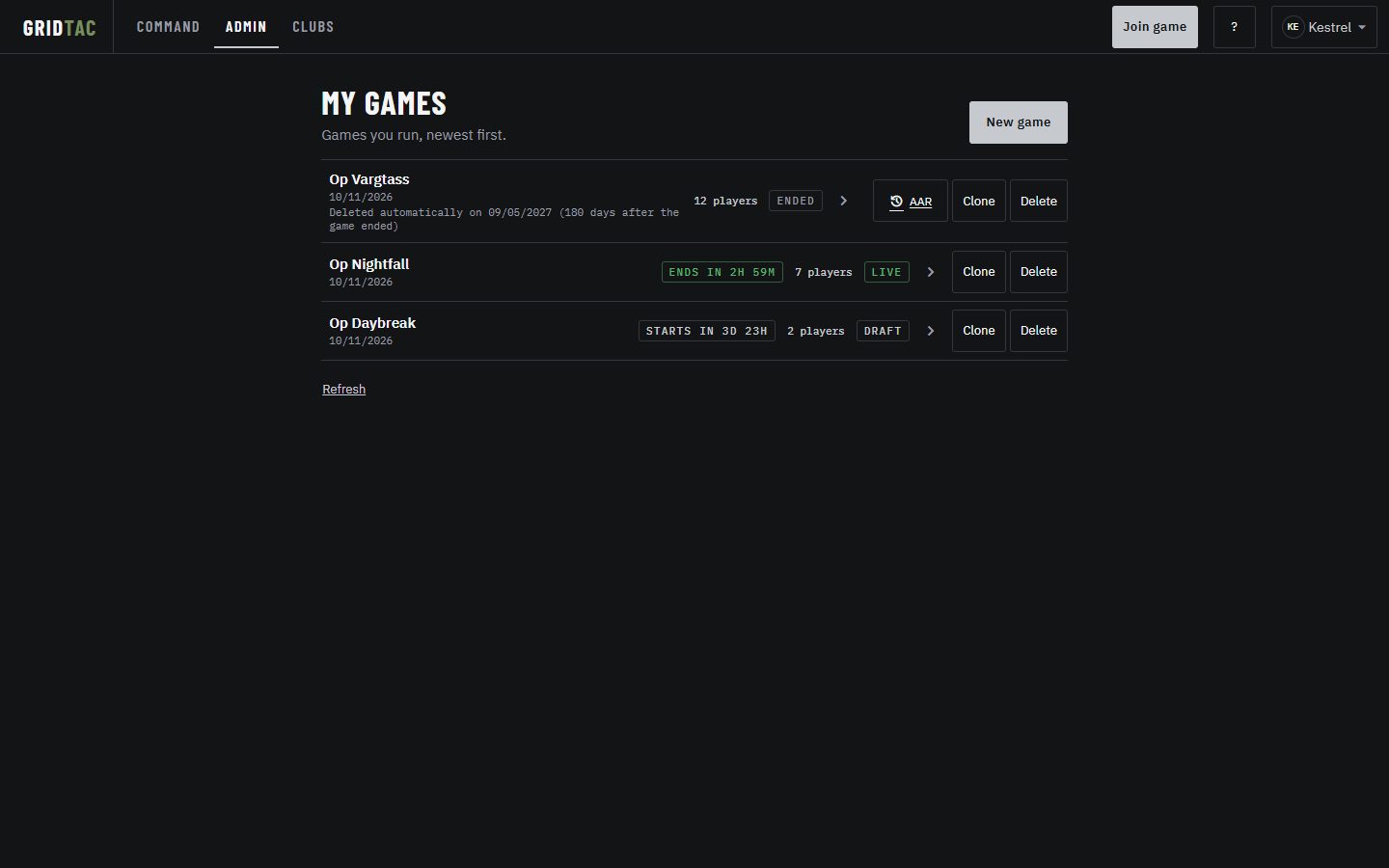
My games (the account menu, top right, or gridtac.com/admin) lists the games you run, newest first, with date, players and status:
- draft: being set up.
- live: being played.
- ended: over, with an after-action review.
A draft with a start time shows when it starts. It goes live by itself at that time.
- Click a game to open its Setup.
- Clone makes a new draft with the same rules, map and sides, but no players. Use it to run the same scenario again.
- Delete removes the game for good. Only the owner can do this.
- AAR on an ended game opens the replay.
- Under After-action are the games you only played in.
Make a game
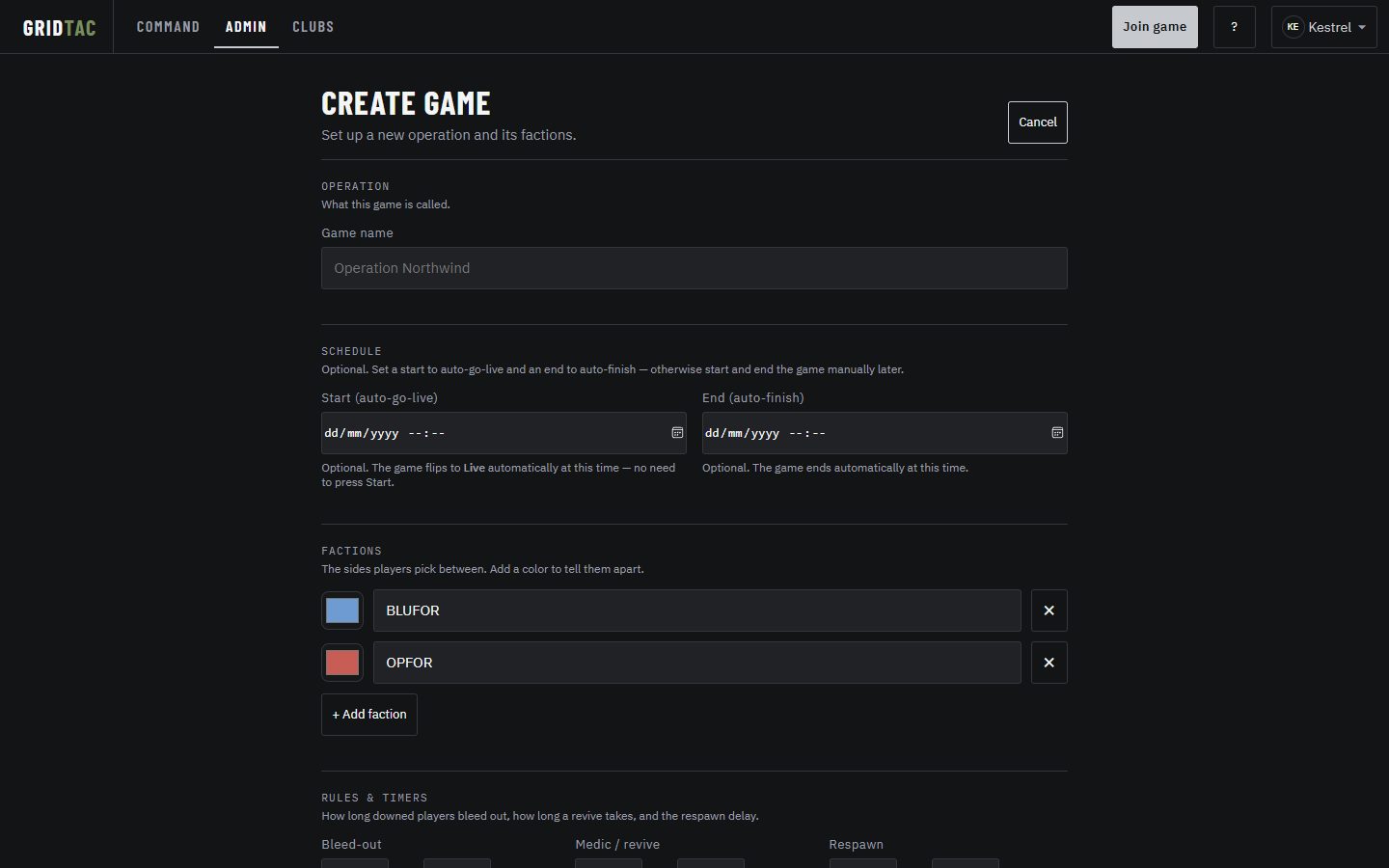
New game asks for:
- a name
- an optional start and end time: the game goes live and ends by itself at these times
- the factions (sides), each with a name and a colour
- the timers for being down, revived and respawning (see Rules)
- how often the players' phones report their position
The default is a good start for most games. Create game takes you into Setup.
Setup
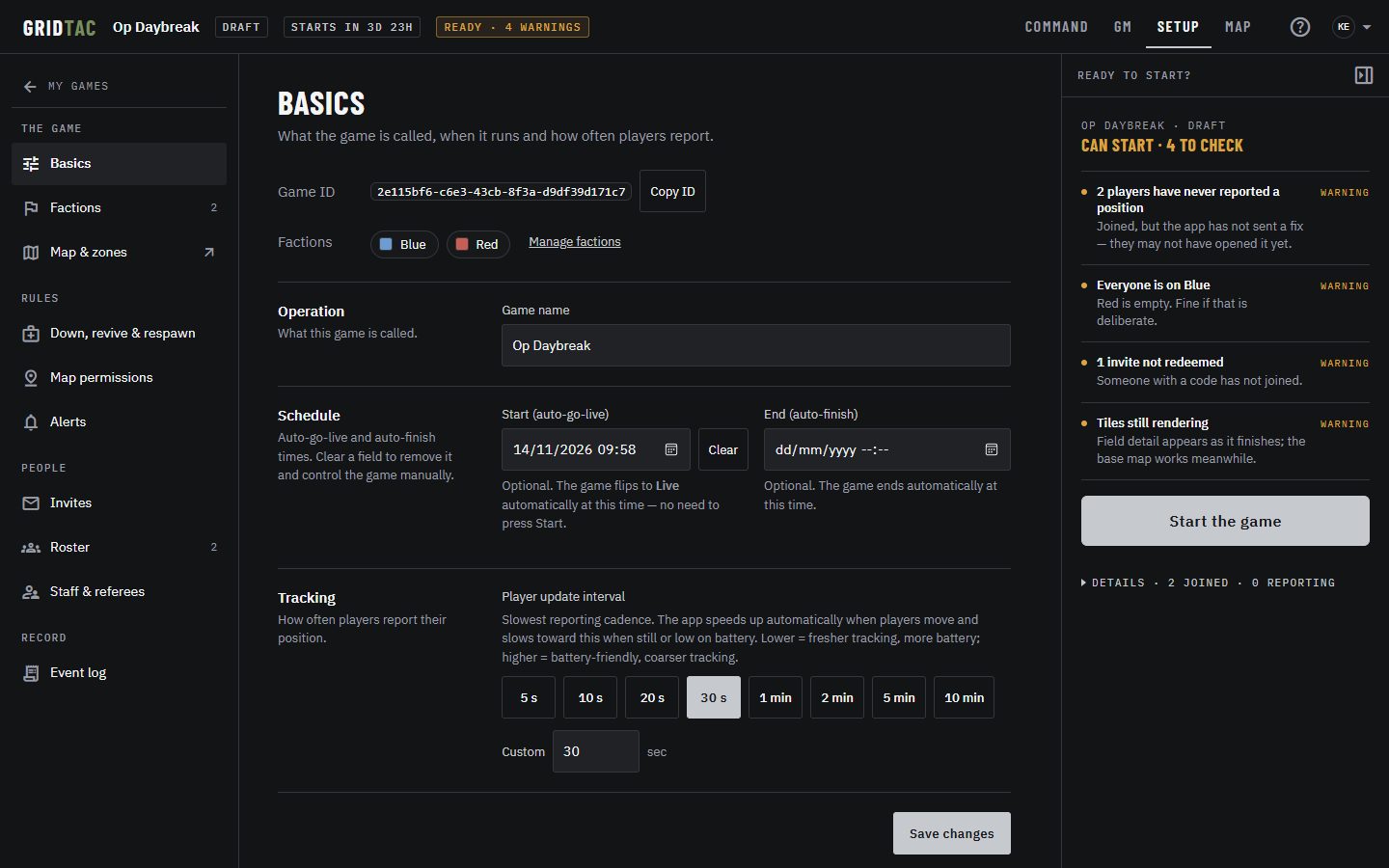
Setup has three columns:
- Left: the sections.
- Middle: the section you opened.
- Right: whether the game is ready to start, and the Start and End buttons.
Changes in a form are saved with its Save changes button. A choice made with a button, such as On or Off, saves at once.
Basics
- The game's ID, with a Copy ID button, for a key or for support.
- Its name and schedule.
- How often phones report their position.
The Danger zone at the bottom deletes the game. Only the owner can do this.
Factions
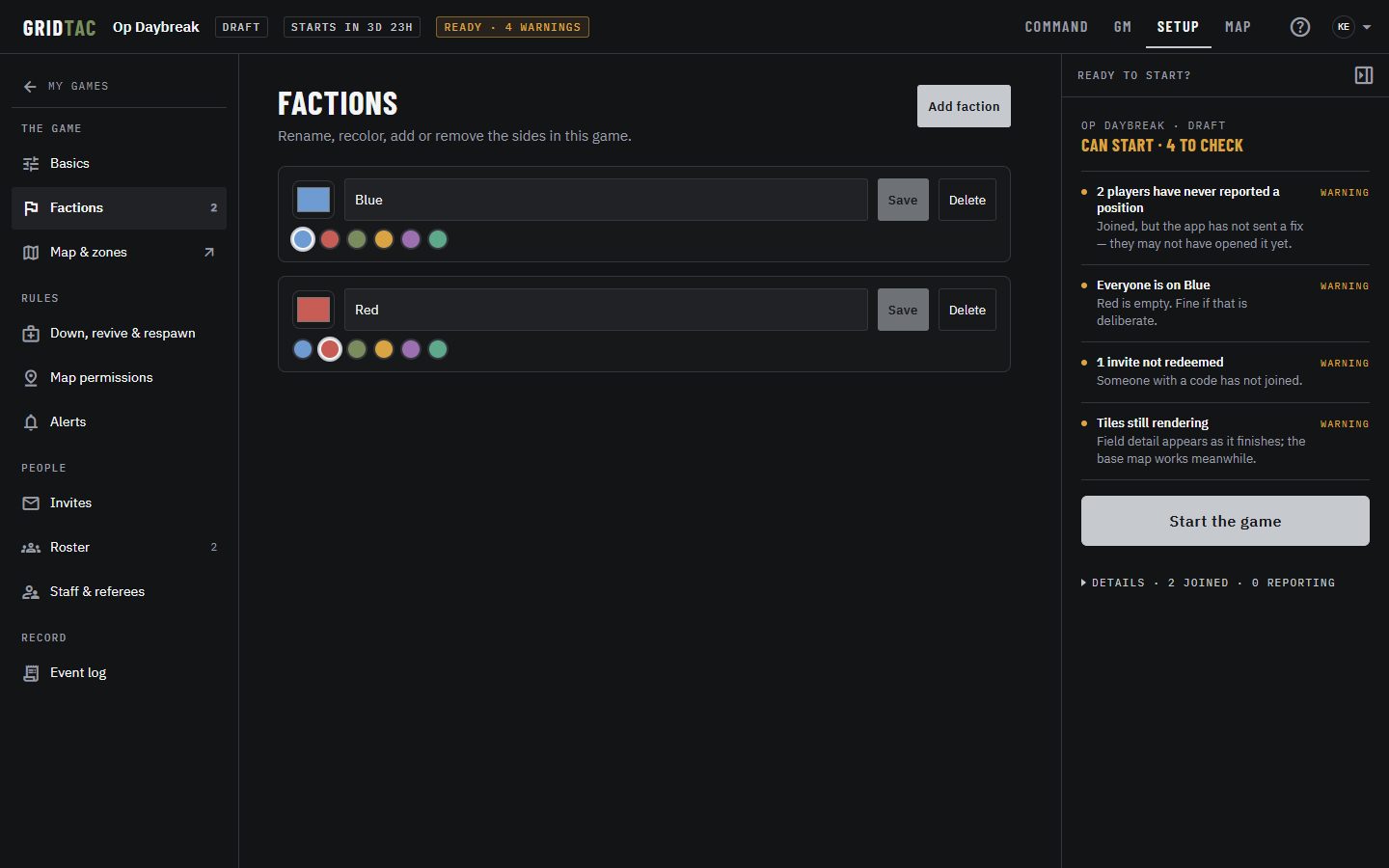
One row per side, with its name and colour. Add faction adds a side, and Delete removes one. A game can have any number of sides; most have two.
Down, revive and respawn
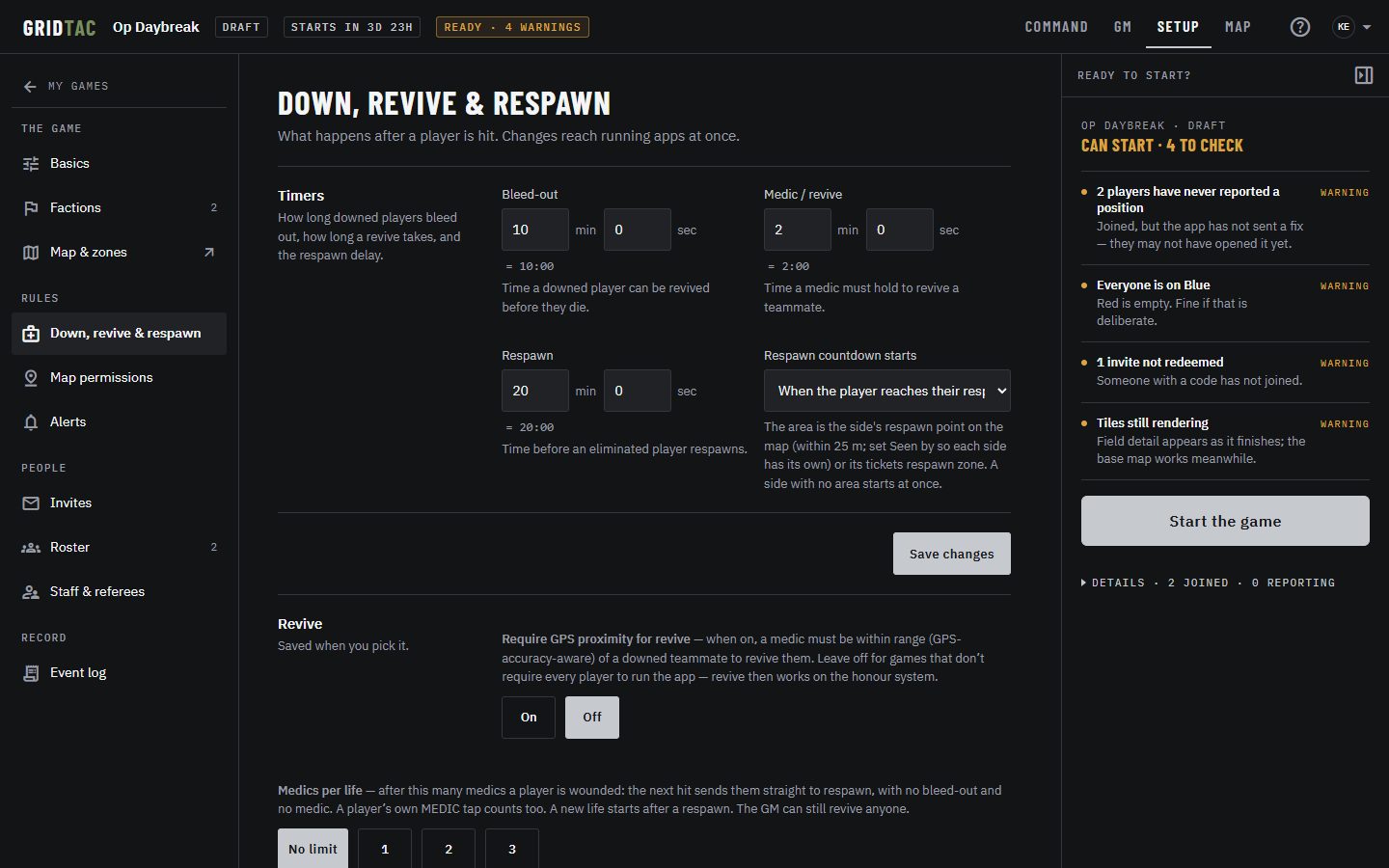
When a player is hit they go down and a bleed-out timer runs. A medic can revive them before it ends. If no one does, they must go to a respawn area and wait out the respawn timer.
- Bleed-out, Medic / revive and Respawn set the timers.
- Respawn countdown starts decides when the respawn timer begins: when the player reaches their respawn area, or the moment they die.
- Require GPS proximity for revive: when On, the medic's phone must be close to the casualty.
- Medics per life limits how many times one life can be revived.
Map permissions
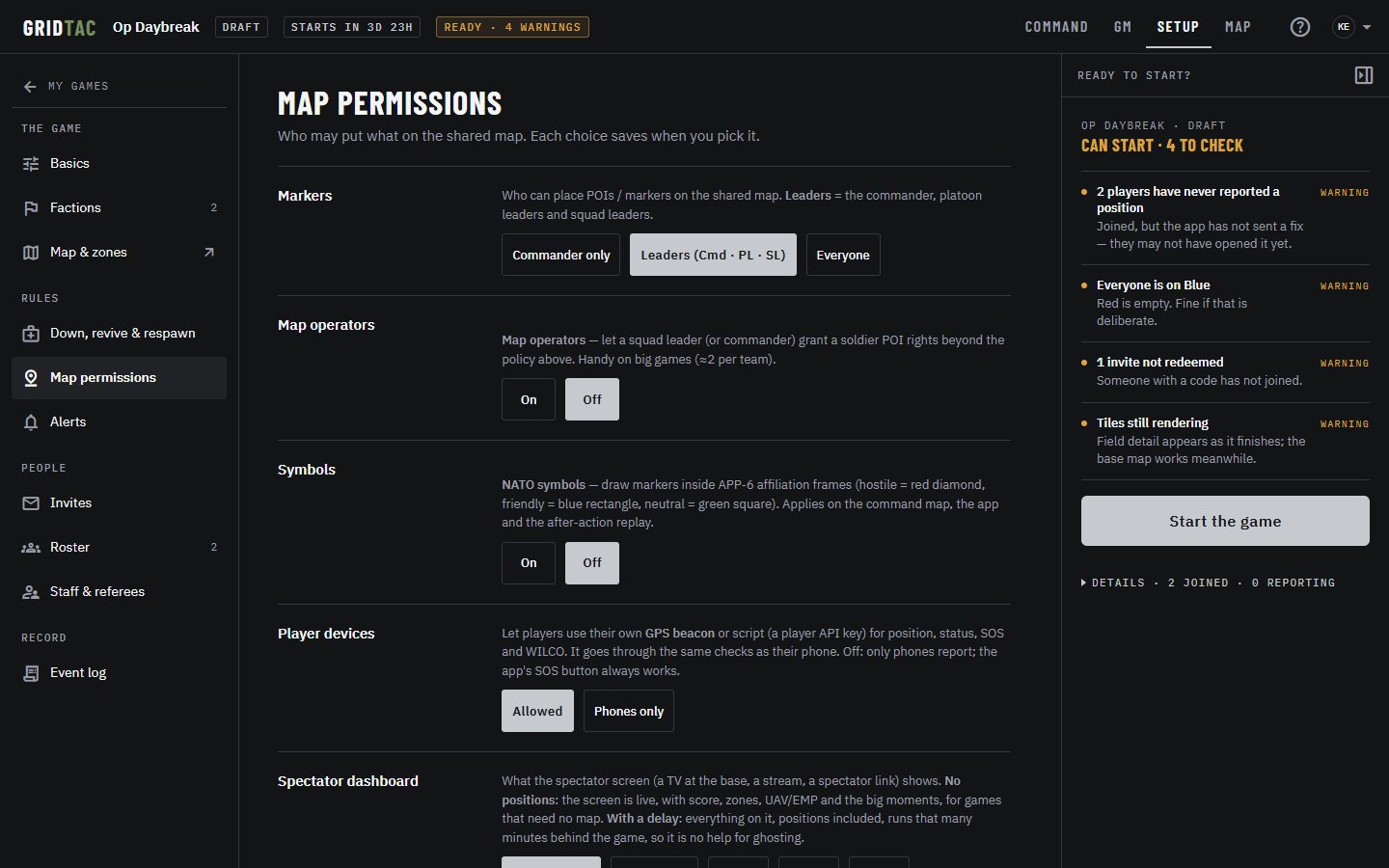
Who may put what on the map:
- Markers: who may place markers (enemy seen, mine, objective and so on). The choices are the commander only, the leaders, or everyone.
- Map operators: allow players who are not leaders to draw, and how many per squad.
- NATO symbols: commanders build proper unit symbols instead of plain markers.
- Player devices: whether players may use a GPS beacon instead of their phone, or phones only.
- Spectator dashboard: whether a spectator screen shows positions, and how late. A delay of 5 to 30 minutes stops the dashboard from being used to spy.
- Spectator link: make a link for a TV at the field entrance. It is shown once, and Turn off stops it.
- API keys: the keys made for this game (Beta). You can see them and revoke them here. Keys are made on gridtac.com under API & hardware.
The Alerts section has one setting. When it is On, a player's phone warns them when they leave the play area, also with the screen off.
Invites
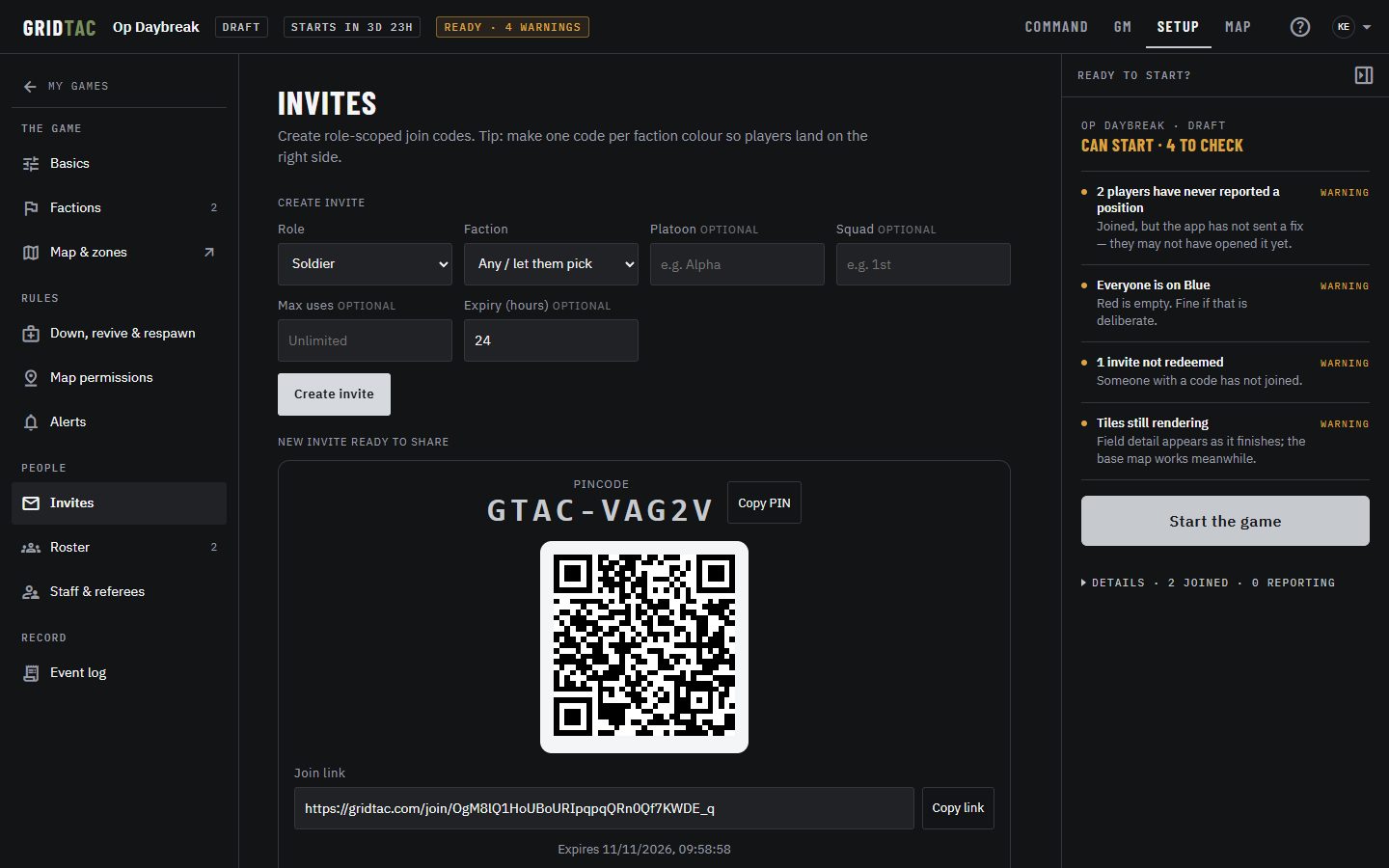
An invite decides which rank a player gets when they join. It can also set their side, platoon and squad.
- Pick the role. Leave the faction on "Any / let them pick" to let players choose.
- Optionally set max uses and how many hours it lasts.
- Create invite gives three ways in:
- a PIN like
GTAC-K7Q2M, typed in the app - a QR code to scan
- a link to send in a chat
- a PIN like
Active invites lists every invite that still works and how often it has been used. Revoke stops one.
Make one soldier invite per side and one commander invite. That covers most games.
The whole structure at once
For a bigger game, Create the structure makes every code your organisation needs in one go:
- Tick the factions, and write the Platoons as names separated by commas:
1, 2gives Platoon 1 and Platoon 2, and a name likeAlphastays as it is. - Keep A commander code per faction ticked if you want one.
- Tick Down to squads and fill in Squads per platoon if every squad should get its own squad leader and soldier code. Without it, each platoon gets one platoon leader code and one soldier code, and soldiers pick their squad when they join.
- Pick how long the codes are Valid for (7 days by default, so you can make them before the game day), then create them.
- Print sheets prints the codes per faction: a card per code with what it is for, its QR code and its PIN, running onto more pages when there are many. Next to it, Soldier codes only (the default) prints just the codes for the players, for the briefing; the leaders usually get theirs in person. Pick Every code to print the commander and leader codes too. Cut the cards and hand each one to the people it is for.
Codes you already made for the same role and place are kept rather than made twice, so you can click again after adding a platoon. A code that would run out before the others is replaced.
Roster
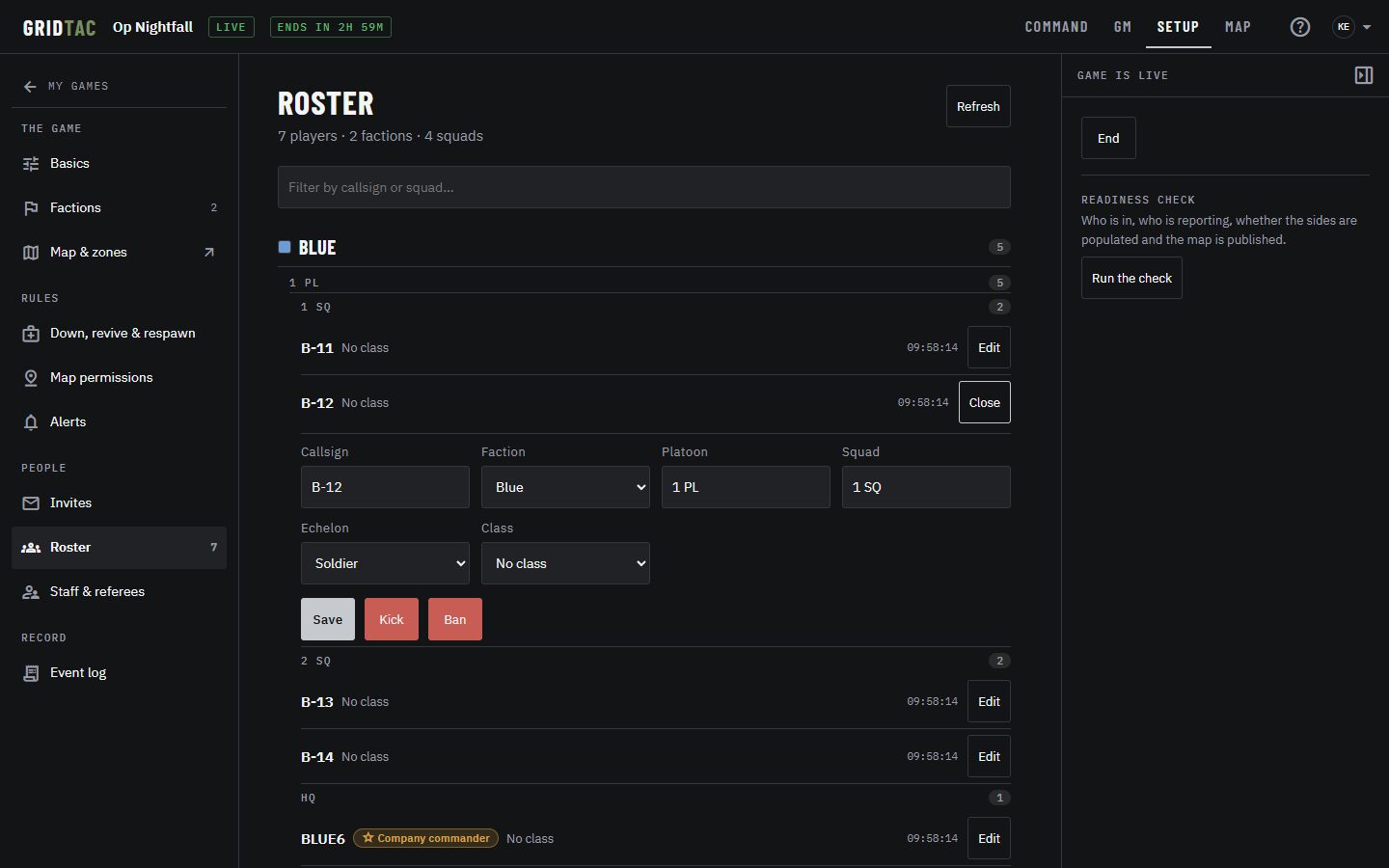
Everyone who has joined, filterable by callsign or squad. Edit on a player lets you:
- change their callsign, side, platoon, squad, echelon or class
- make them a map operator, when map operators are allowed
- Kick them: they can join again
- Ban them, with a reason: they cannot join again until you Unban them
Staff and referees
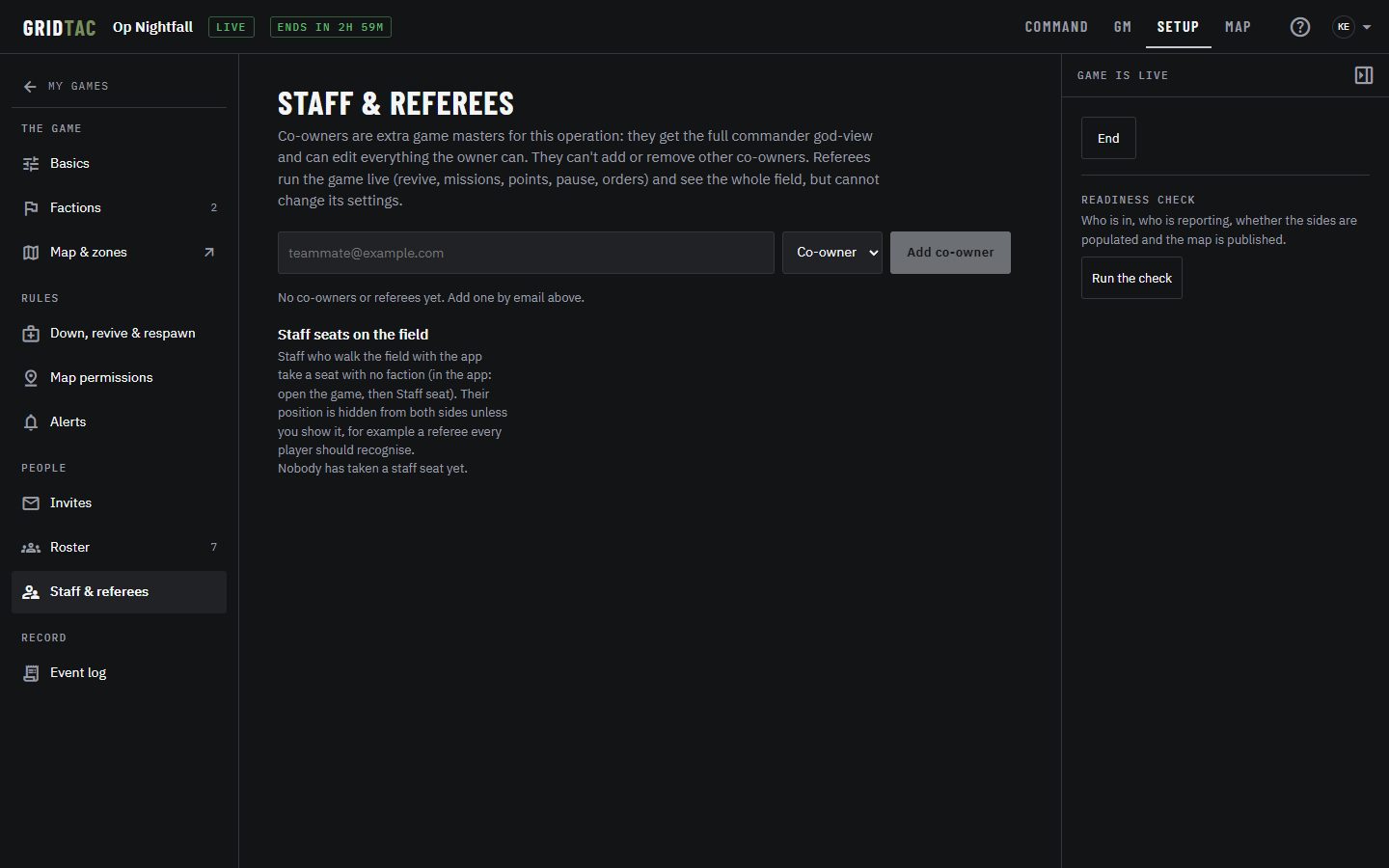
Add a co-owner (runs the game with you, including Setup) or a referee (runs the live game only) by the email they signed up with. Staff seats on the field decides whether each staff member's position is shown to the teams or hidden.
Event log
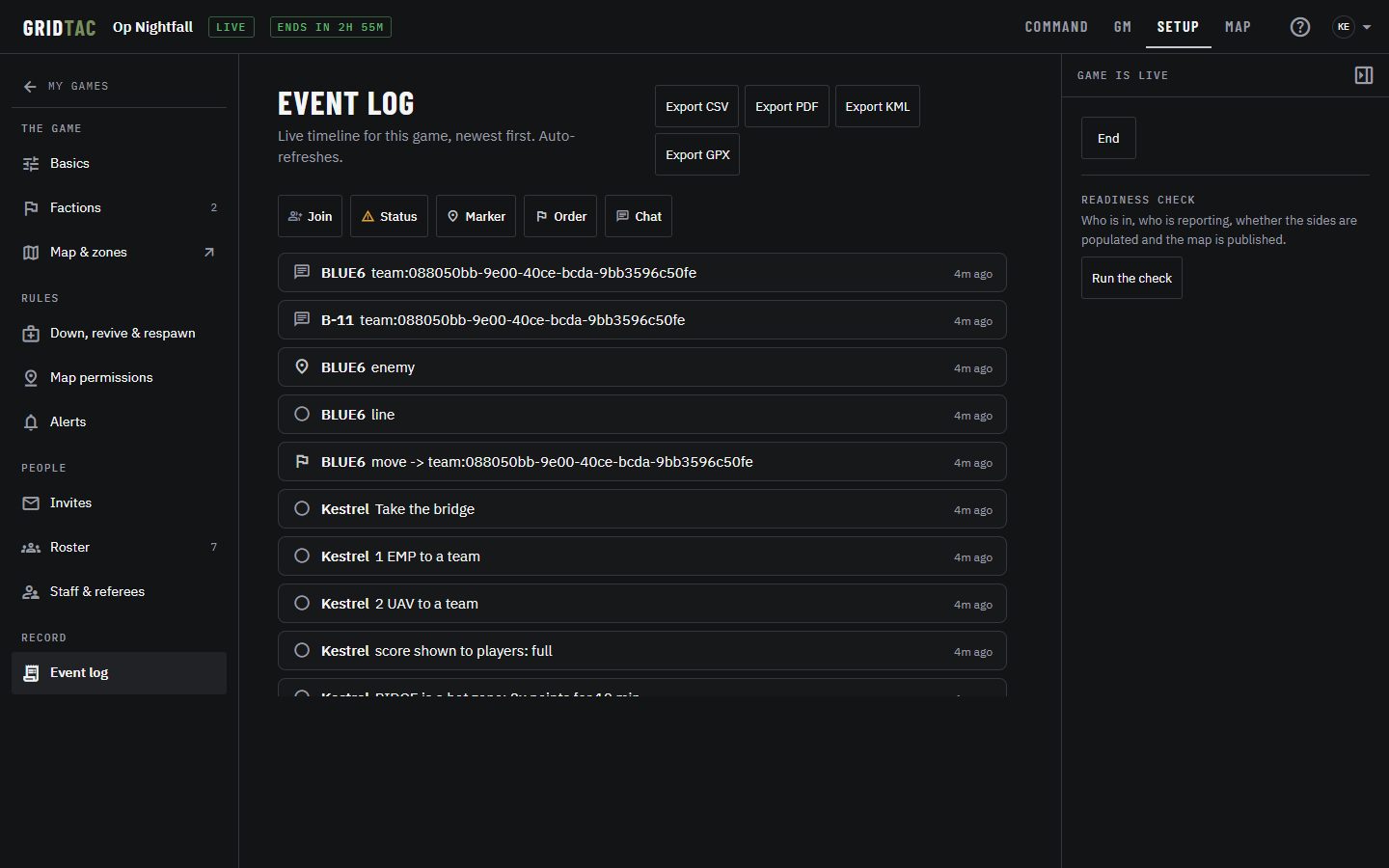
Everything that happened in the game: joins, status changes, markers, orders and chat. Filter it by type. Export it as CSV or PDF for the record, or as KML or GPX to open the tracks in another map program.
The map
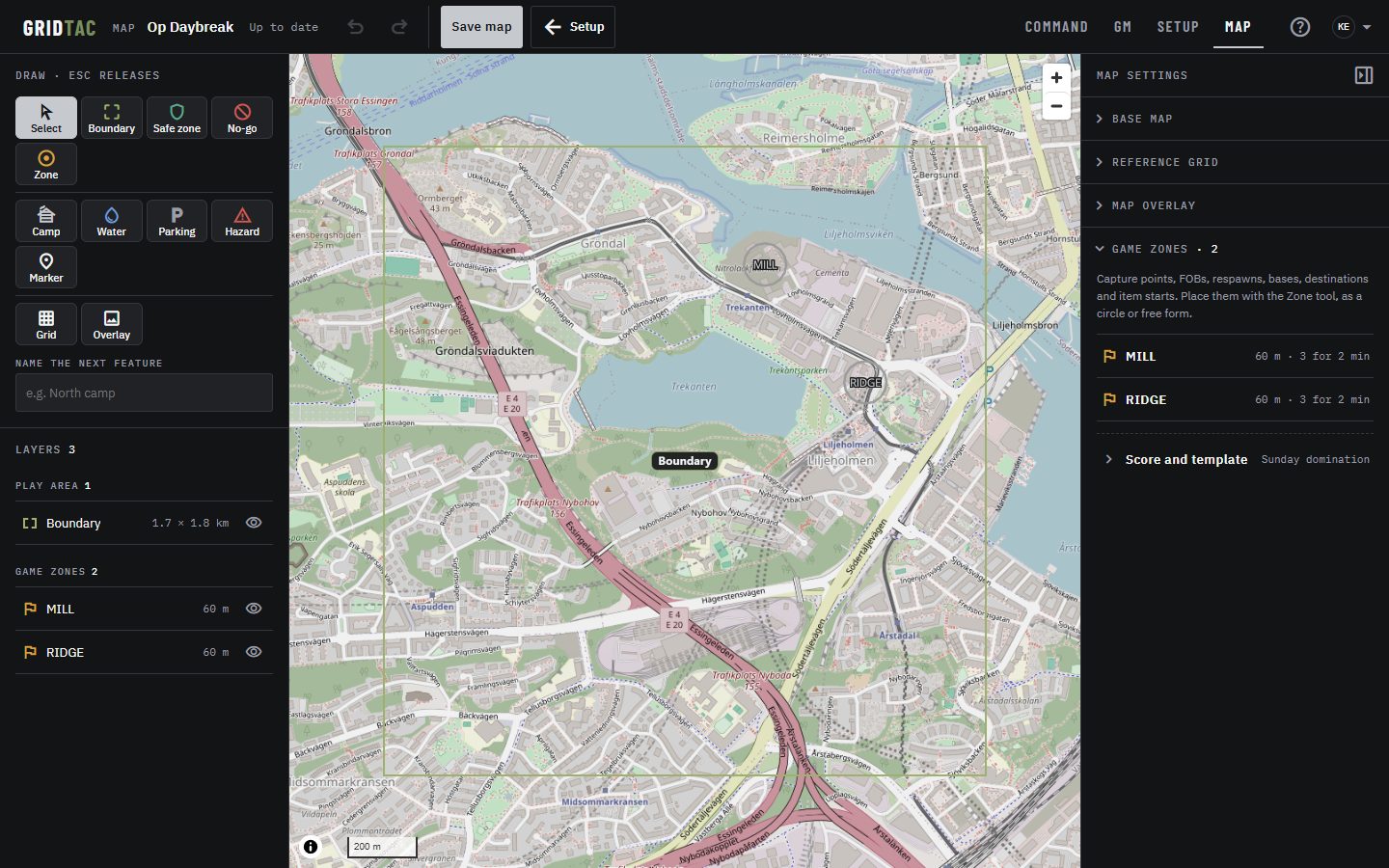
Map (the switcher, or Map & zones in Setup) is where the play area is drawn.
The tools on the left, from the top:
- Select: pick and move what is drawn. Esc returns to it from any other tool.
- Boundary: the play area. With the play-area alert on, players are warned when they leave it.
- Safe zone: an area marked safe on every map, such as the staging area. It is a marking only: the game does not stop hits there.
- No-go: an area no one may enter. A player's phone, and watch, warns them when they walk into it.
- Zone: a game zone (see Zones).
- Camp, Water, Parking, Hazard and Marker: points everyone sees.
- Grid: a reference grid with your own cell size and labels. It can follow the map or an overlay image.
- Overlay: put a picture over the map, such as a hand-drawn site map or a drone photo. Align it by three points.
Name a feature before you place it, in the field under the tools. Undo and Redo are at the top. Save map stores the drawing; the editor warns you before you leave with unsaved changes.
The right column holds the settings for the base map, the grid, the overlay and the zones.
Zones
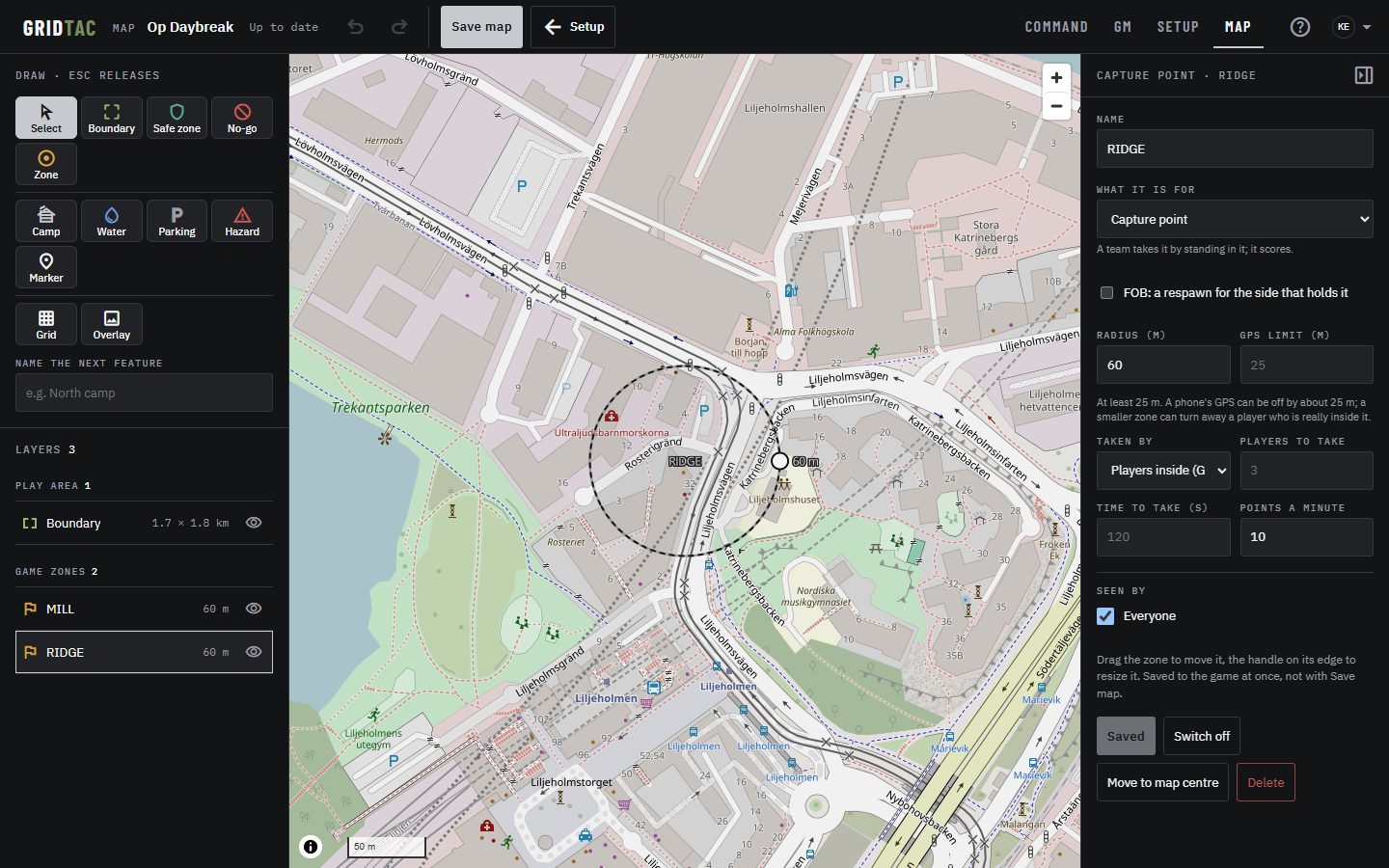
A zone is a circle or a free shape with a purpose. On the map its label says who holds it in words as well as colour ("ALPHA · Blue"), so colour-blind players can read it too. The purposes:
- Capture point: sides take it and score points every minute they hold it.
- Respawn: where a side respawns.
- Base: a side's home.
- Destination: where a VIP or an item must be brought.
- Item start: where a fetch item lies.
- FOB: a capture point that also works as a respawn for the side that holds it.
For a capture point you set:
- Taken by: players inside it (by GPS), a capture box, or a box with players inside.
- Players to take and Time to take: how many players, and for how long, it takes to win the zone.
- Points a minute while held.
- Seen by: everyone, or only some sides. A zone a side cannot see does not exist for them.
Score and template, under the zone list, sets whether players see every side's points, only their own, or none until the end. It also applies a ready-made set of capture rules (Sunday domination, Small group or Milsim weekend) to every capture point.
Zones change at once, also in a live game. They do not wait for Save map.
Start the game
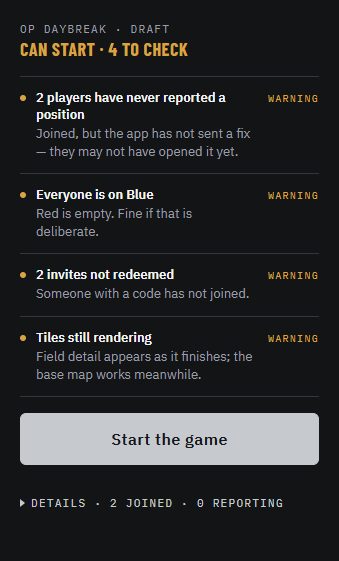
The right column in Setup checks the game before you start it. It looks for things such as:
nobody has joined, or there is no play area
players on no side, or everyone on one side
players who have never reported a position
no commander
a zone taken by a box when no box is chosen
a respawn zone that names no side
A blocking finding must be fixed first.
A warning is worth reading but does not stop you.
A finding about zones has a link straight to them on the map.
The table under the findings shows each player's last report and GPS accuracy. Check it before you start: a player who has not reported is not on the map.
Start the game, then Yes, start the game, makes it live. A draft with a start time goes live by itself at that time.
Run a live game
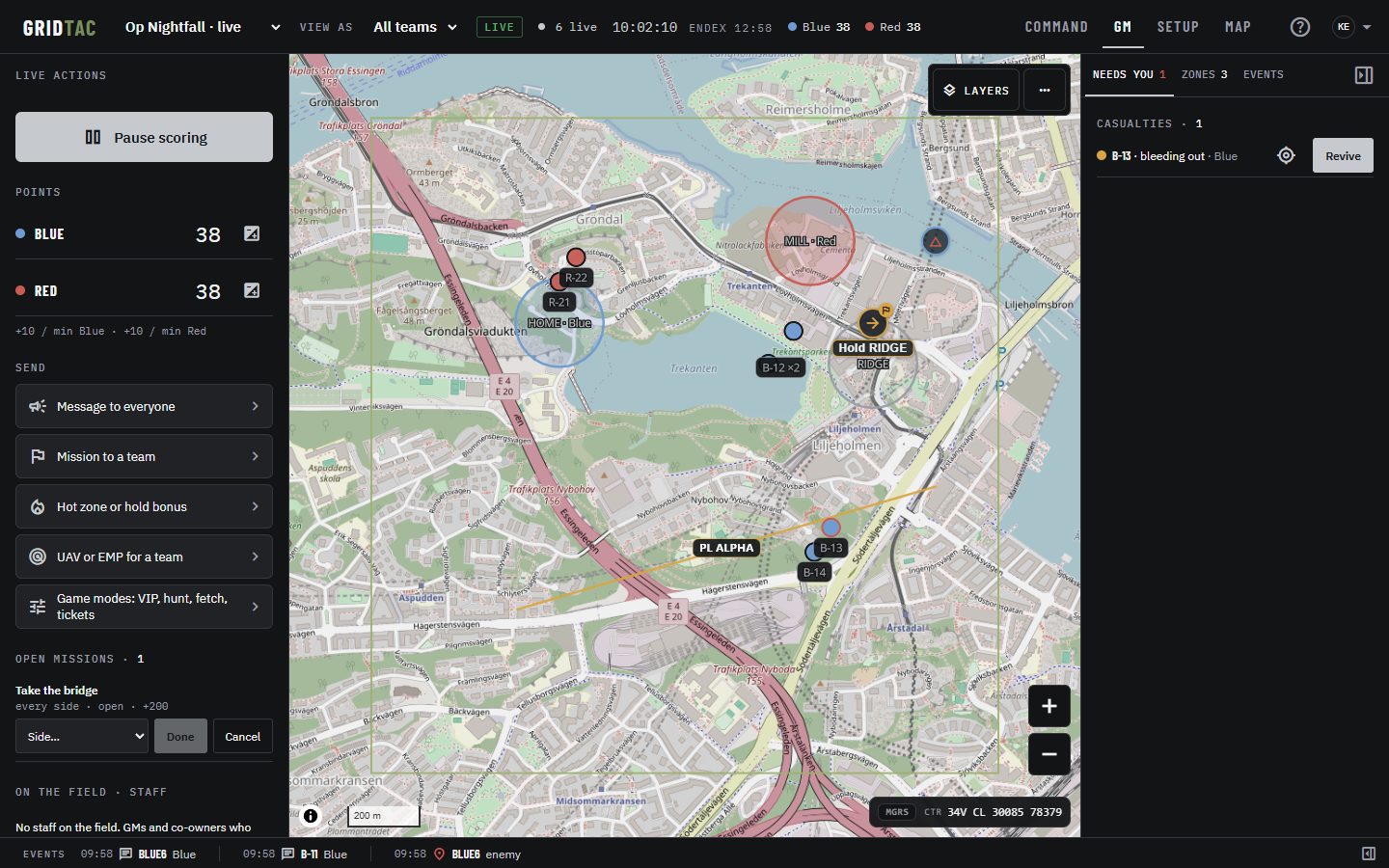
Open GM in the switcher. You see every side on the map.
- Left: the actions.
- Right: what needs your attention, the zones, and the event log.
Every action shows its result next to its button. When the server refuses one, the reason is shown there, for example "The game is paused. Resume scoring first."
Pause and points
- Pause scoring stops the zones from scoring, for a break or a dispute. Down and respawn timers and tickets keep running, and the top bar shows PAUSED. Resume scoring starts it again.
- To adjust points, press the +/- button on a side's row, enter the points (for example +200 or -100) and a reason, then Apply. The reason is shown to the players and logged.
Needs you
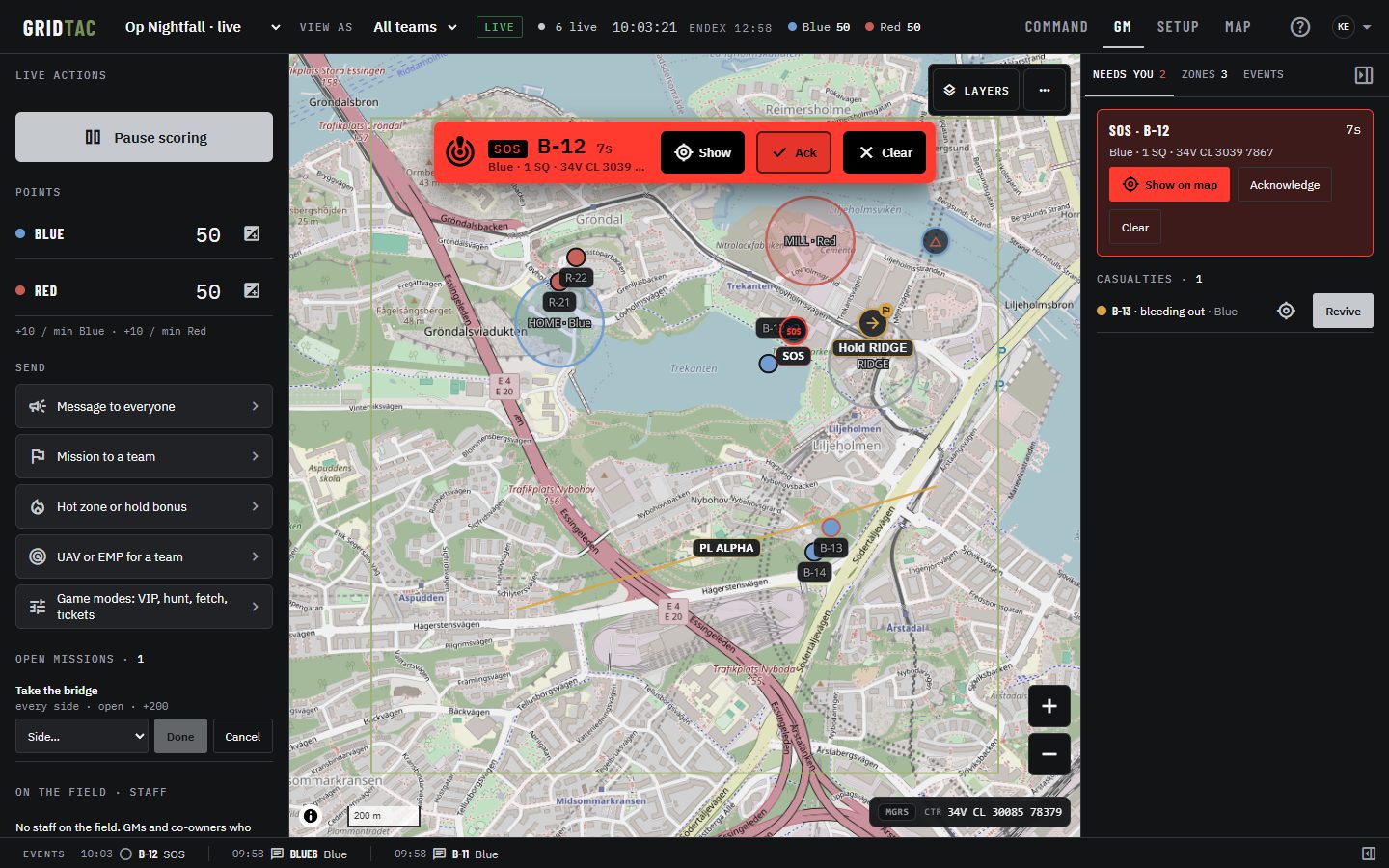
The first tab on the right collects what needs a person:
- SOS: a player asked for help. Show on map finds them. Acknowledge tells you have seen it. Clear takes it down for everyone.
- Casualties: who is down right now. Revive brings a player back from the GM's side, for example when a medic's phone has no signal.
- Box captures to check: a capture box reported something worth a look.
- Stopped reporting: phones that went dark. Show gives where they last were.
Zones in a live game
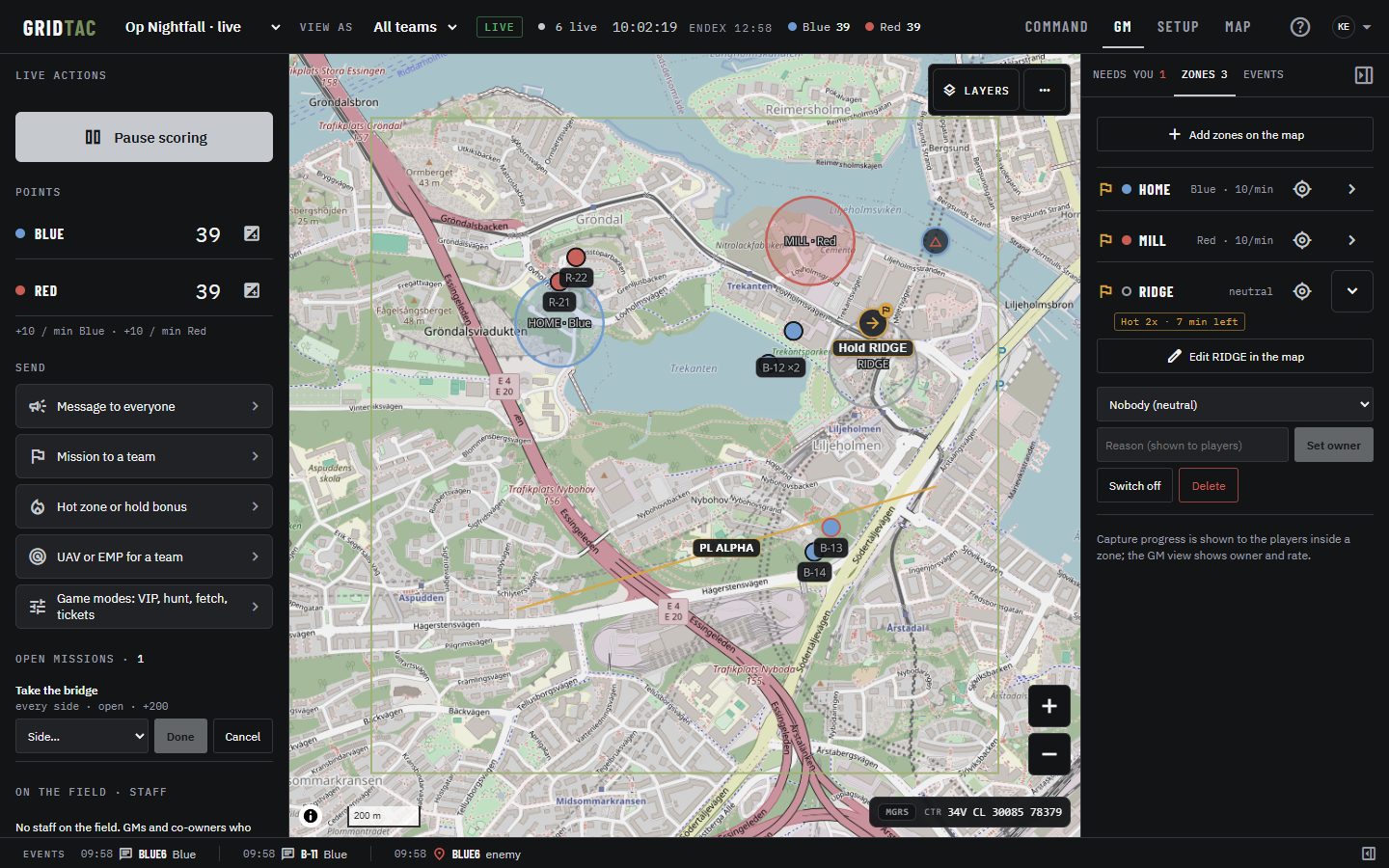
The Zones tab lists every zone with its owner. Manage on a zone lets you:
- set its owner, with a reason, when a capture was disputed
- switch it off and on
- delete it
- open it in the map editor
Under the zones, Boxes in this game lists the capture boxes. Take back releases a box from this game. Turn all boxes off silences every box at once.
Send
The Send buttons on the left each open a small form:
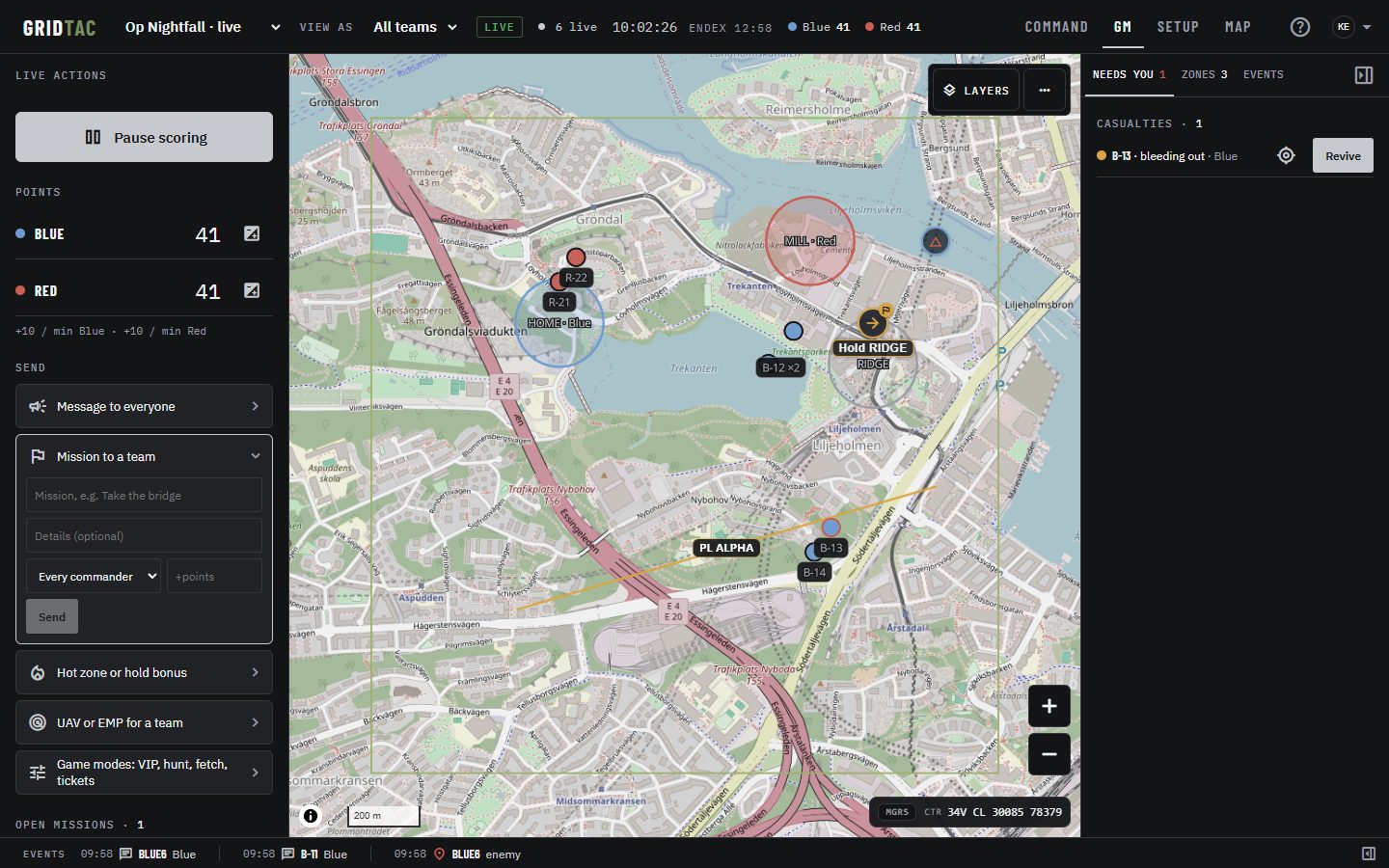
- Message to everyone: to all players, or to the commanders only. To write to one player, use the chat on the Command screen with Direct and pick them; they answer you the same way, and their reply reaches the game staff only.
- Mission to a team: a task for one side's commanders, or every side's, with an optional points reward. Commanders see it on their Missions tab and Report done. You approve it under Open missions, and the reward is paid.
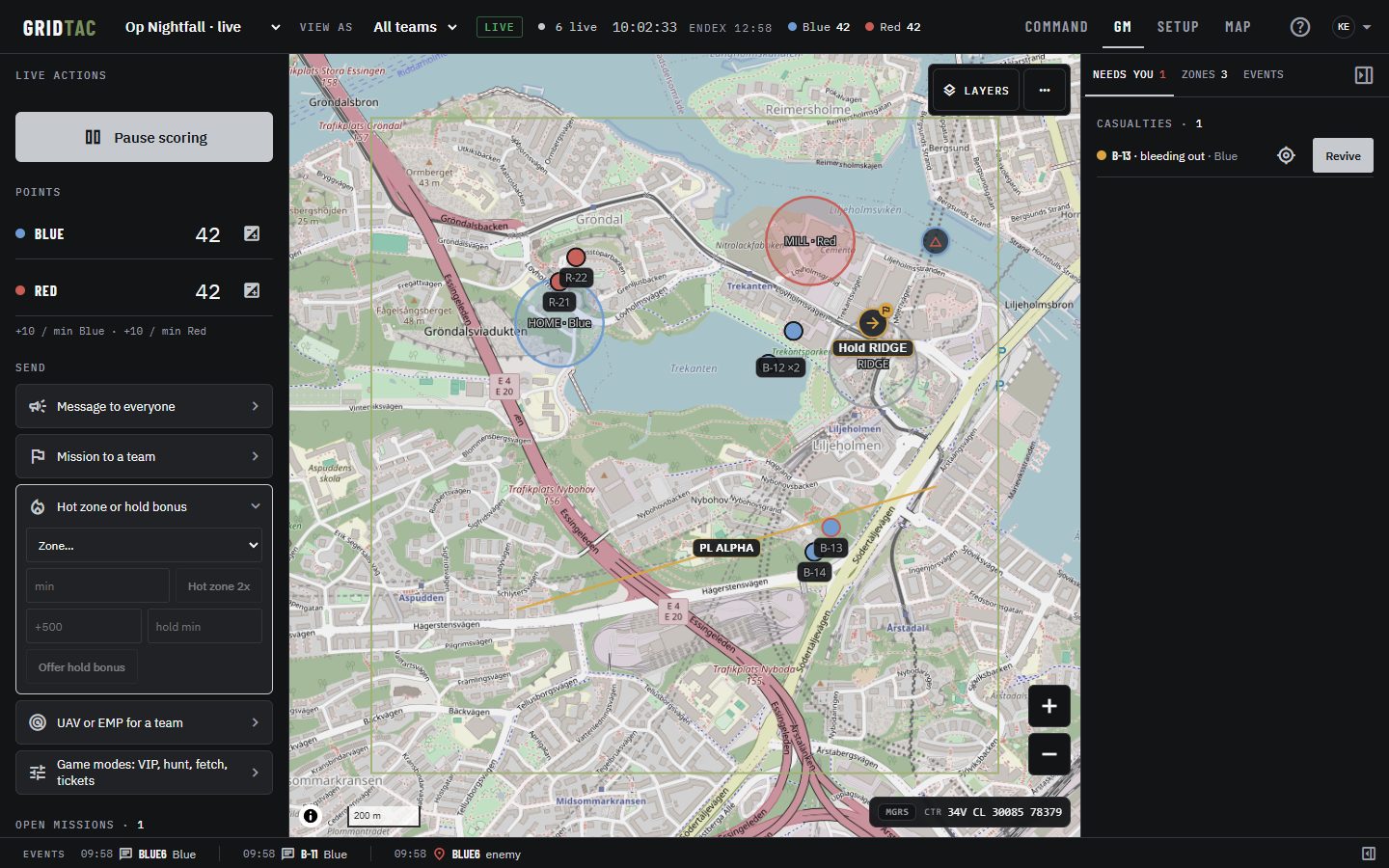
- Hot zone or hold bonus: one capture point scores double for some minutes, or pays a bonus to whoever holds it for long enough. Both are good for moving a game that has stalled.
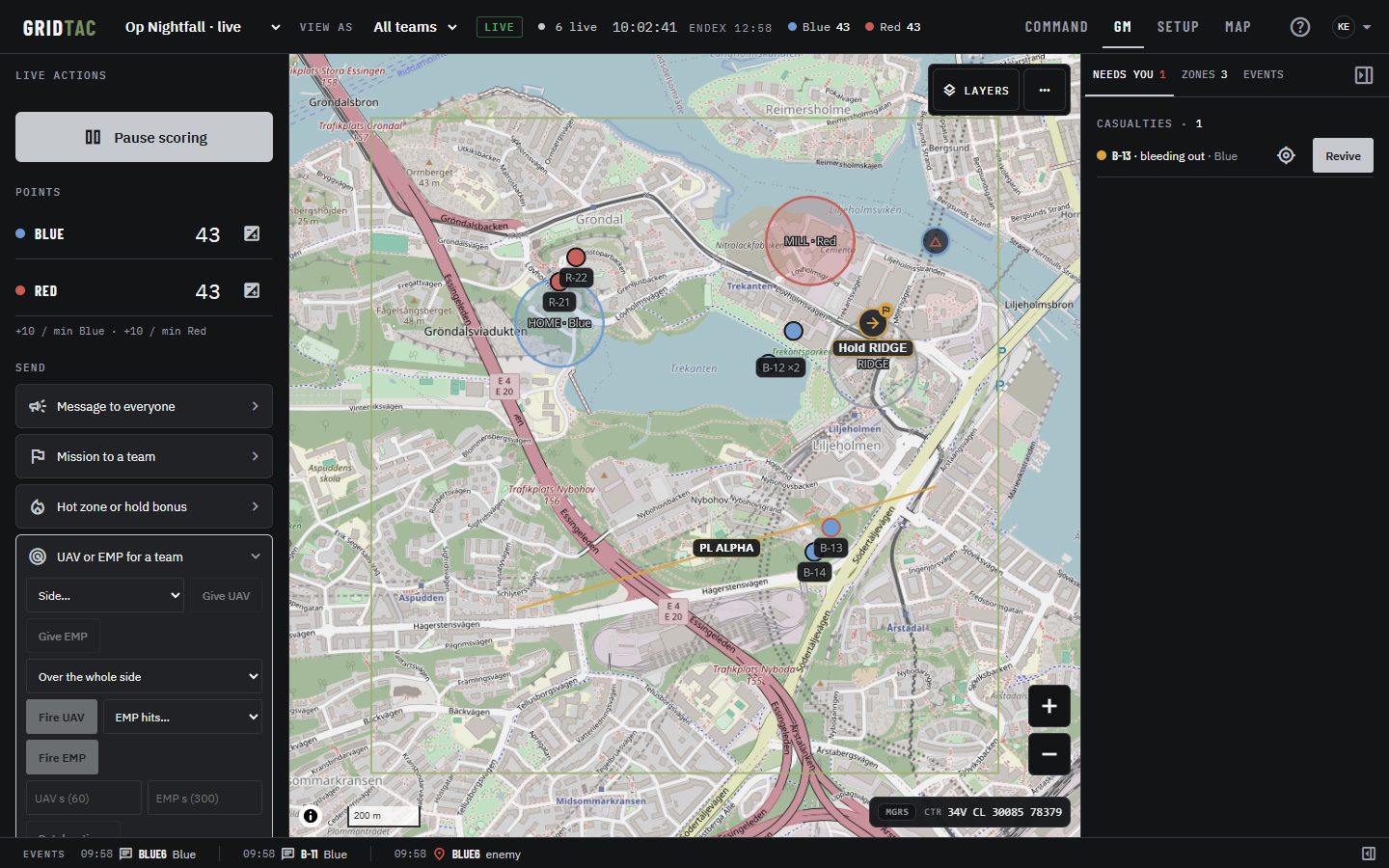
- UAV or EMP for a team: give a side a UAV (it shows them the enemy for a while) or an EMP (it blinds the enemy's map for a while). Give one as a reward, or fire one yourself, over a whole side or around a place. The side's commander can fire what they have been given. The durations are set here too. A running UAV or EMP is listed in the top bar, where the GM can End it early.
Game modes
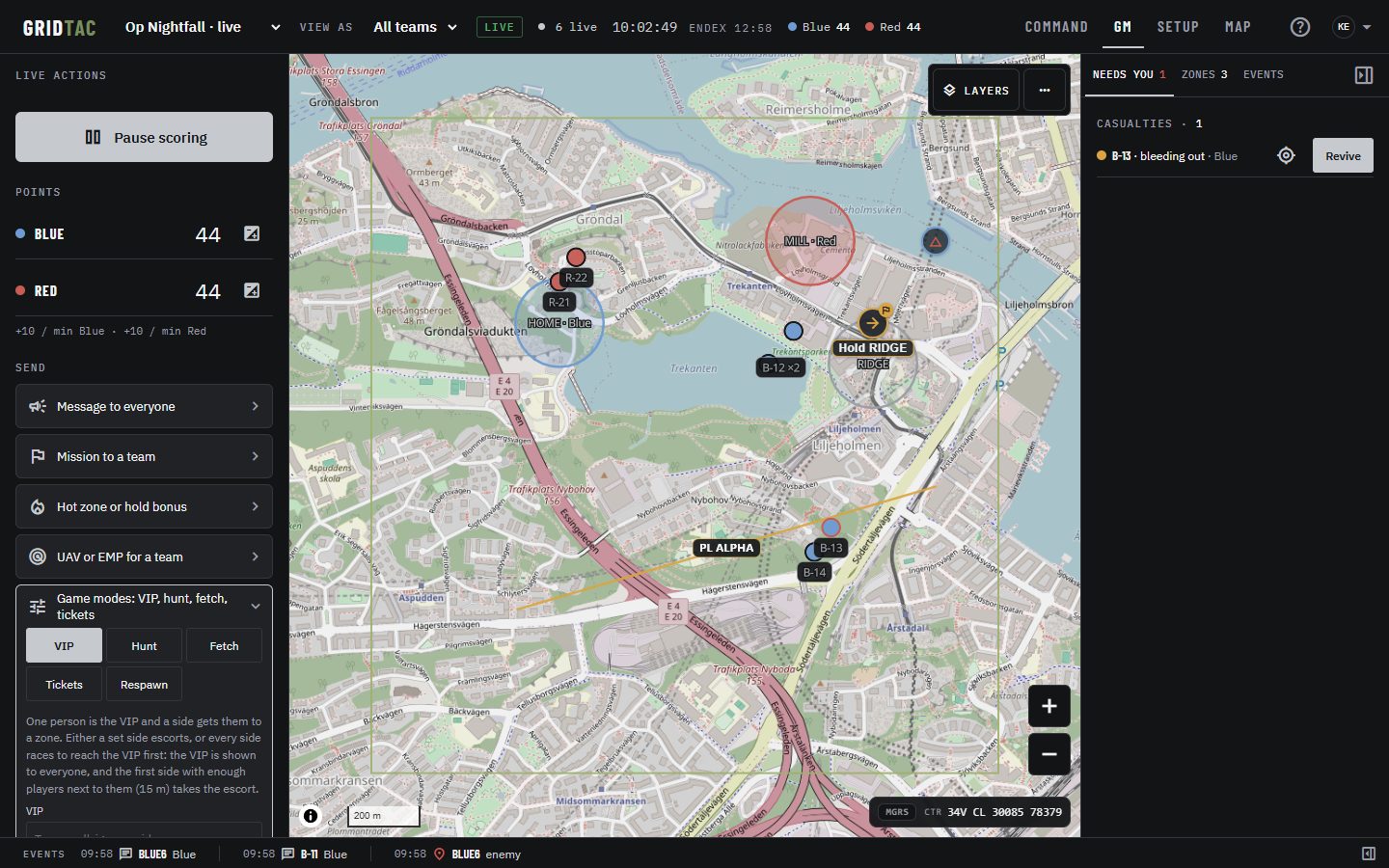
Game modes starts a mode on top of the zones:
- VIP: one player must be escorted to a destination. You choose who escorts, who can see the VIP, how often they are shown, the time limit and the reward.
- Hunt: one squad is hunted and shown to the hunters every so often. Optionally it wins by surviving for a time.
- Fetch: items, or a single flag, start somewhere and must be brought to a base. You choose what happens when a carrier is hit. Confirm or Send back settles a delivery.
- Tickets: each side has a number of respawns. Adjust changes them during the game, and you choose what happens when a side runs out.
- Respawn: a mobile respawn that you, or the players you name, can move during the game.
End the game
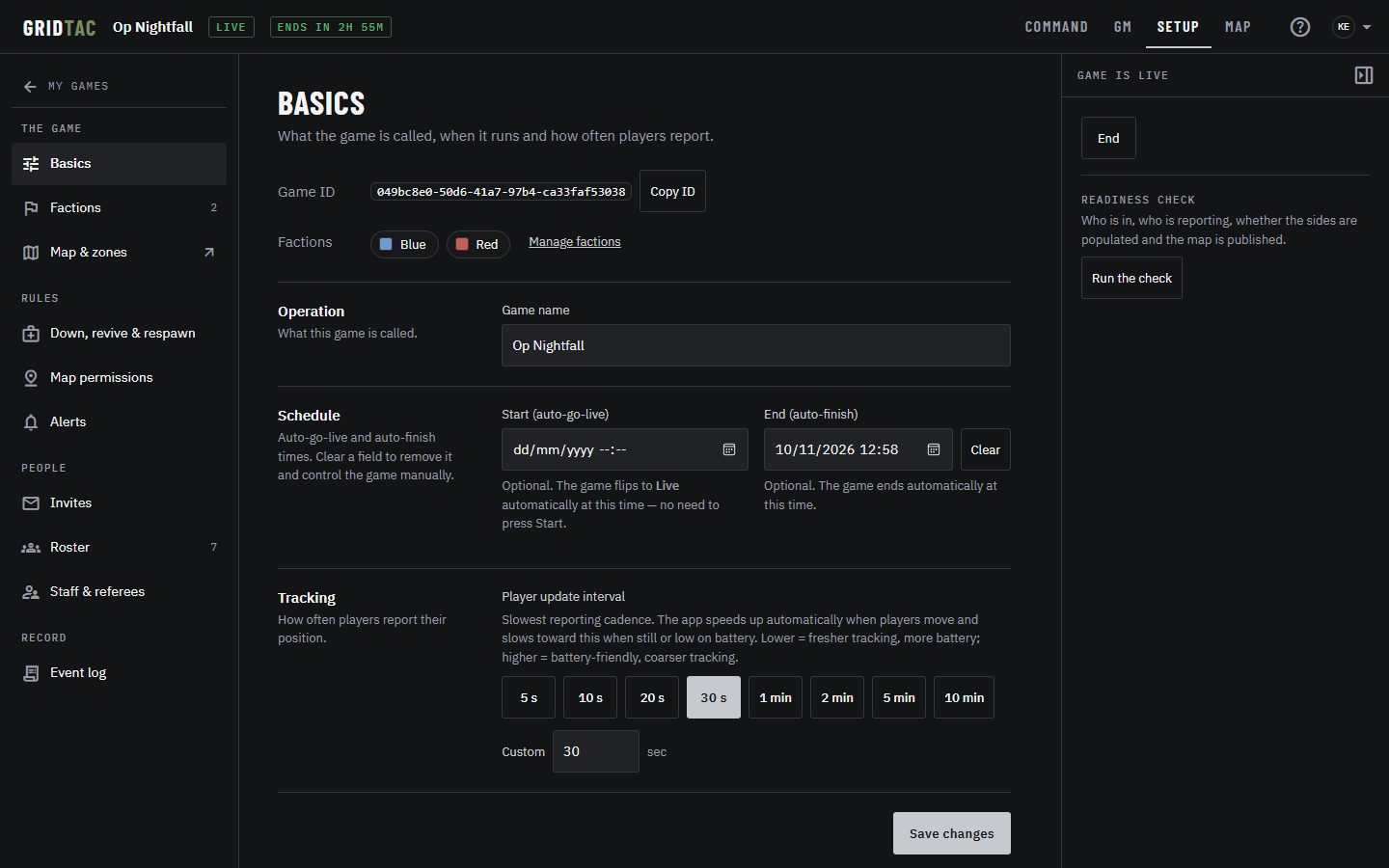
End, in the right column of Setup, then End the game stops it for everyone. A game with an end time ends by itself at that time. Re-open brings an ended game back; its review is rebuilt when it ends again.
A live game that has been quiet for a long time can also be ended by a GridTac administrator. The reason they give is shown to the players and to you.
After the game
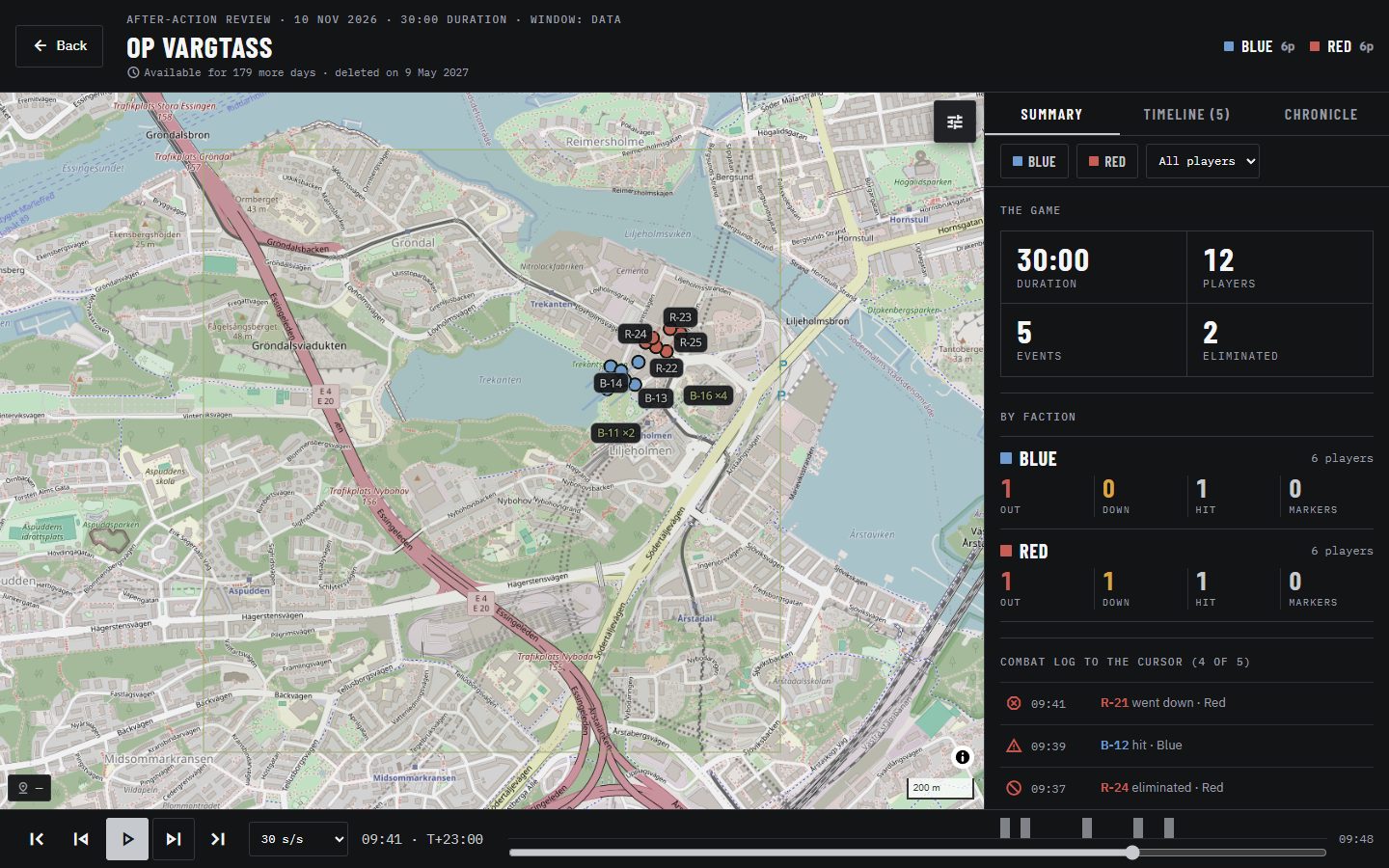
AAR on an ended game, in My games, replays it:
- Summary: the result, the missions, and the losses per side.
- Timeline: every event.
Under the map, the replay controls step from event to event or play the game at a speed you pick. The Trails and Heat chips on the map show where everyone went and where the game was fought.
Players who were in the game can open the review too.