Commander guide
The Commander screen on gridtac.com is a live map of your side. It is for whoever leads: commanders, platoon and squad leaders, and map operators. From it you see your people, give orders, mark what you know, talk, and use what the Game Master gives you. Use a laptop or a tablet. In the field, a phone runs the GridTac app.
The pictures on this page are taken by a script from the live screen. The game in them is a made-up one: Blue against Red, and you are BLUE6, Blue's commander. Map data © OpenStreetMap contributors.
The screen
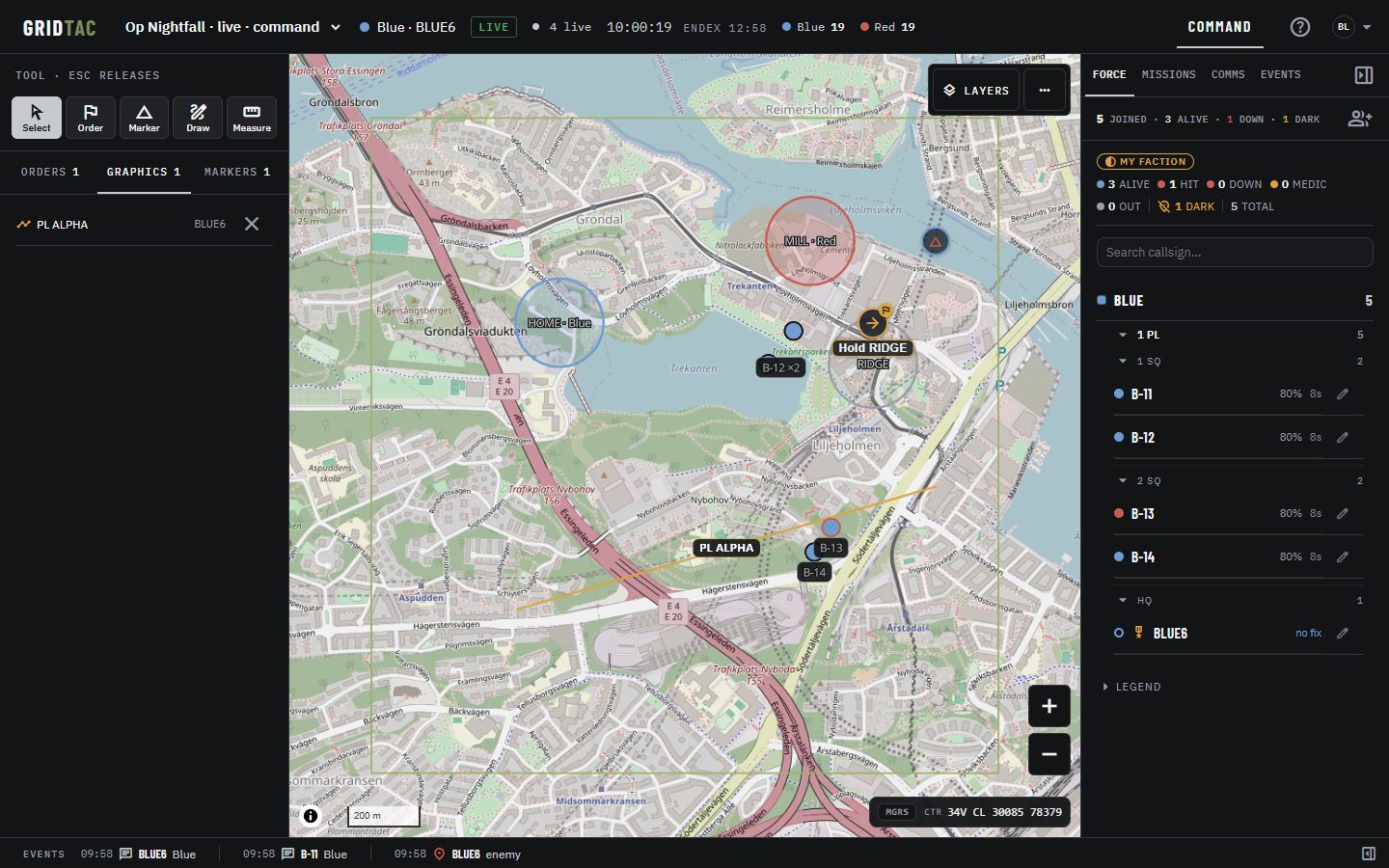
Open it from Command in the top bar, or from gridtac.com/command.
Top bar:
- the game you are watching
- your side and callsign
- the status of the game and how many are reporting
- the clock to the end
- the score: points per side, and running UAVs and EMPs. With tickets or fetch items in the game, these are shown too.
Left: the tools, and under them the list of what is on the map (orders, drawings, markers).
Middle: the map.
Right: four tabs.
| Tab | What it holds |
|---|---|
| Force | your people |
| Missions | missions from the Game Master, and your UAV and EMP. Commanders only |
| Comms | the chat |
| Events | what has happened |
What you see is fogged. You see your own side, and the enemy only where your side has seen them: a marker someone placed, a UAV, or a zone they took. The fog is applied on the server, so no screen and no app can show more than your side has earned.
On a smaller screen the left column opens from the button at the top of the map, and the right column from the line at the bottom.
Your people on the map
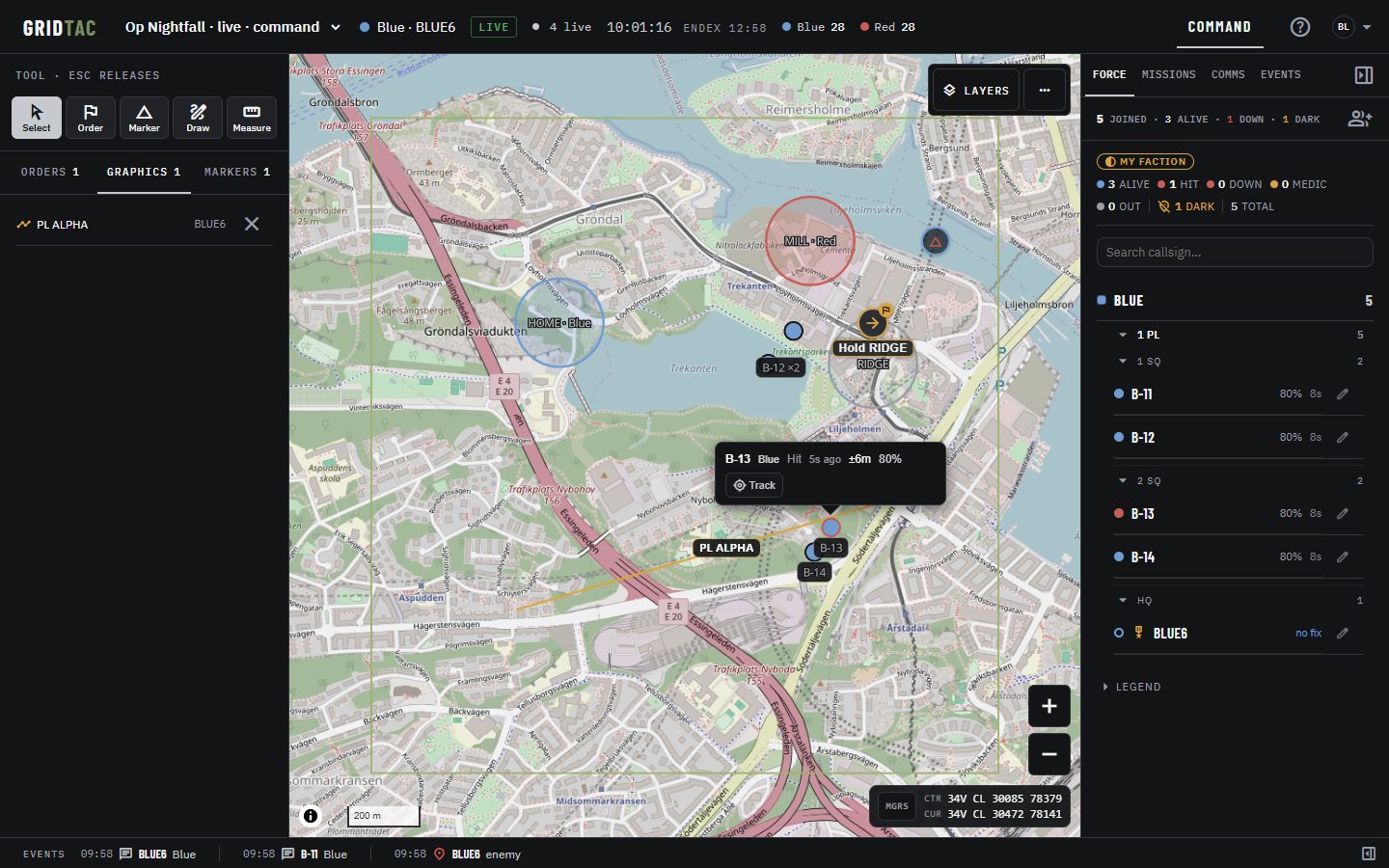
Each dot is a player, coloured by side, with their callsign. A zone's label says who holds it in words as well as colour ("ALPHA · Blue"). A hit or down player is drawn differently, and a player whose phone stopped reporting fades out.
Click a player to see:
- their side, status, and how long ago they reported
- how accurate their GPS is
- their battery
- whether they report through a GPS beacon instead of a phone
Track follows them on the map. The tracking panel then shows their range, bearing and time to reach them from the map centre or from another player. Stop ends it.
Players too close together to tell apart are listed in one card ("3 here").
Orders
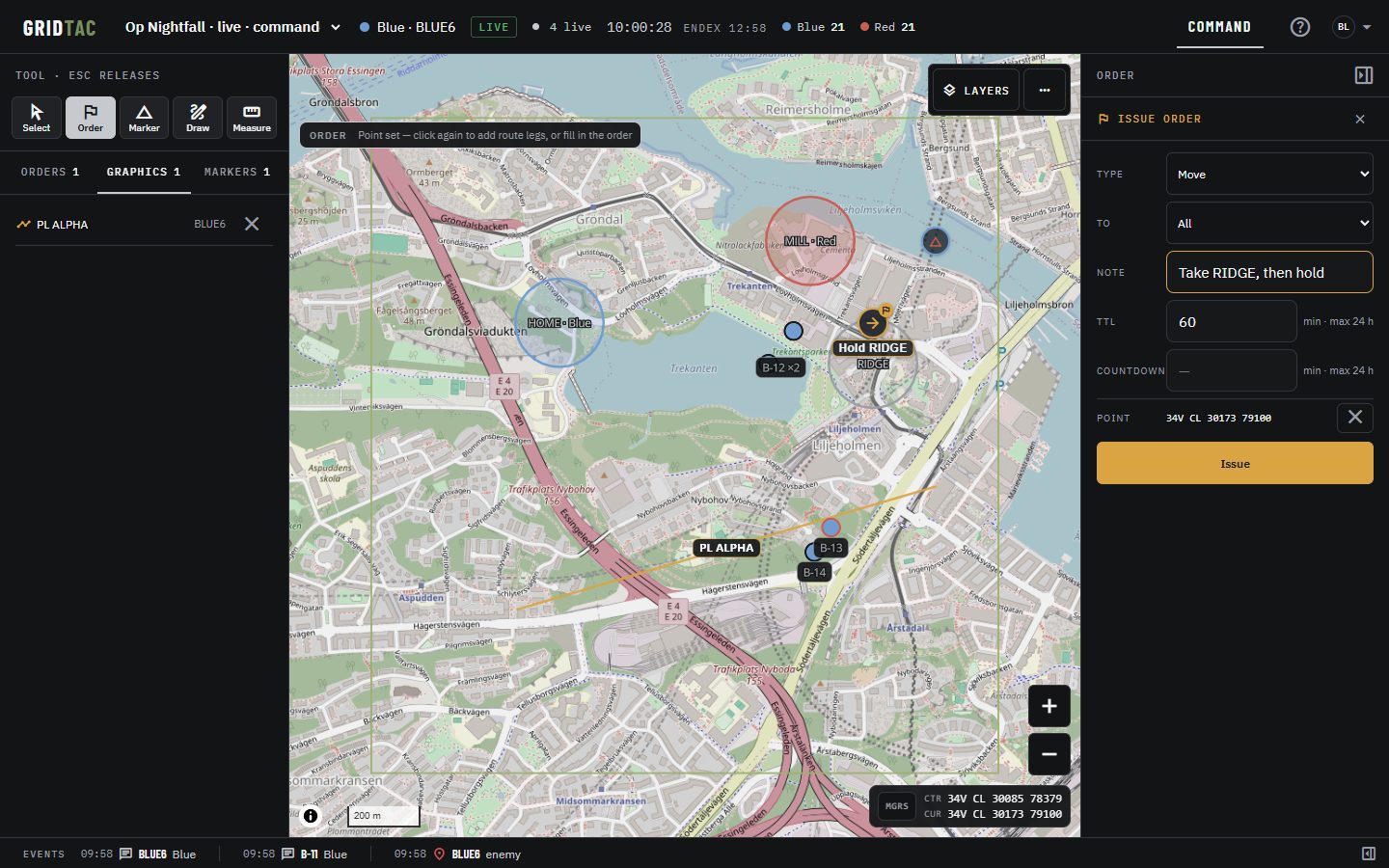
- Pick Order in the tools.
- Click the map where the order is for. Click again to add legs to a route.
- Fill in the form on the right:
- Type: move, waypoint, hold, rally, attack, recon or support.
- To: everyone, a side, a squad or a single player.
- A note.
- How long it is valid (TTL, in minutes).
- An optional countdown, for example "attack in 10 minutes".
- Issue sends it.
The players get it in the app with a sound and see it on their map.
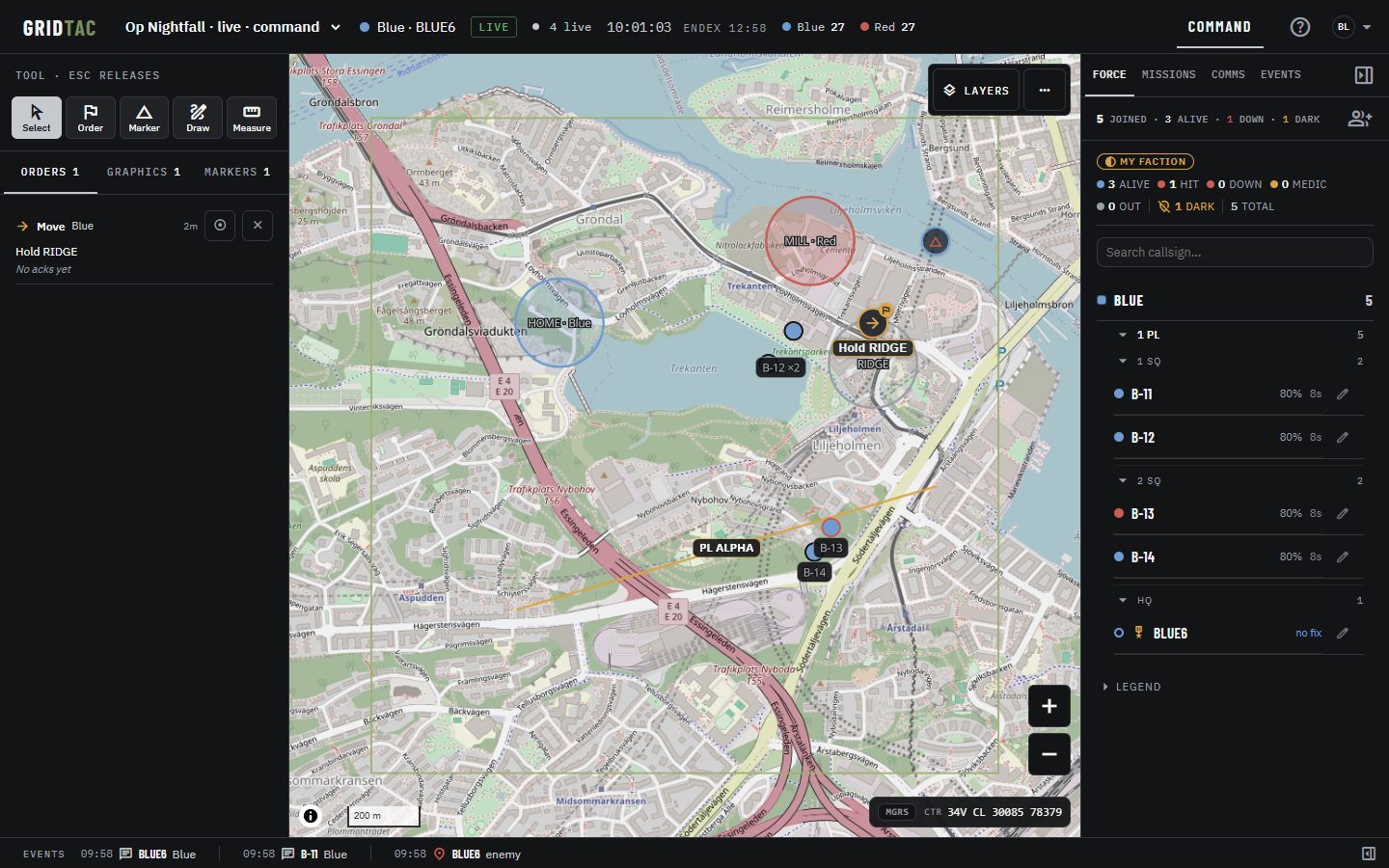
The Orders list on the left shows every active order and who has acknowledged it ("✓ 3 by B-11, B-12 …"). The arrow shows an order on the map, and Cancel takes it back. You can also drag an order on the map to move it.
An order goes through three steps:
- Open: sent, nobody has answered yet. It is on your map.
- WILCO: a player has acknowledged it. It leaves your map, so the map shows only what is still waiting for an answer, and stays in the list marked WILCO with who answered. Turn on Acknowledged orders under Layers to see them on the map again, dimmed.
- Done: the unit has finished the task and tapped Done. The order is gone for everyone, and you get a "Done" notice. When an order is addressed to you, you can mark it Done yourself from the list or from the order on the map.
Markers
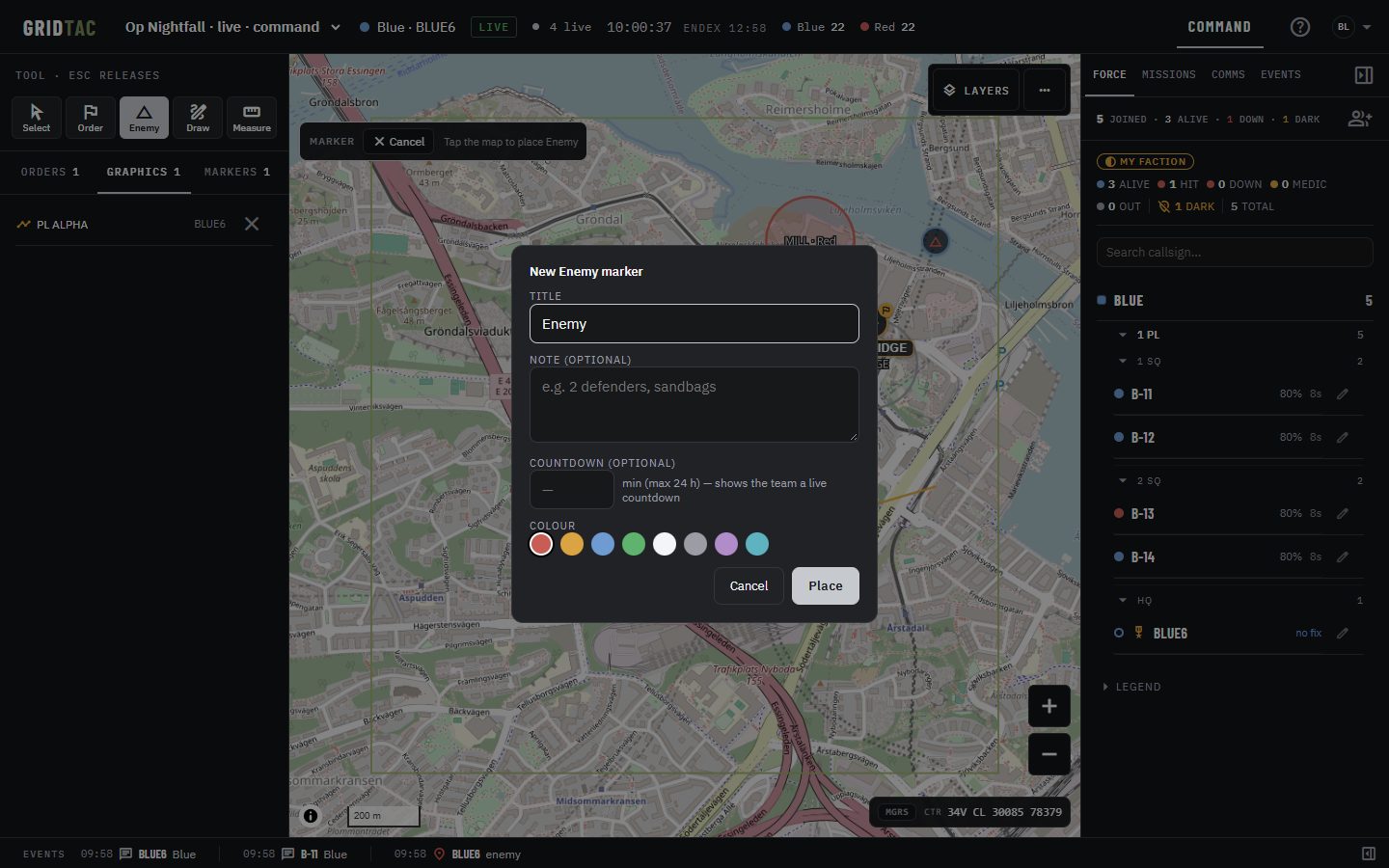
Marker opens a menu of marker types: enemy seen, objective, mine, casualty and more. Pick one and click the map. You can add a title, a note, a countdown and a colour, then Place it.
Who may place markers is the Game Master's choice (commander only, the leaders, or everyone). When the game uses NATO symbols, the Marker button builds a proper unit symbol instead: affiliation, unit type and echelon.
Click a marker to delete it, or drag it to move it.
Drawing
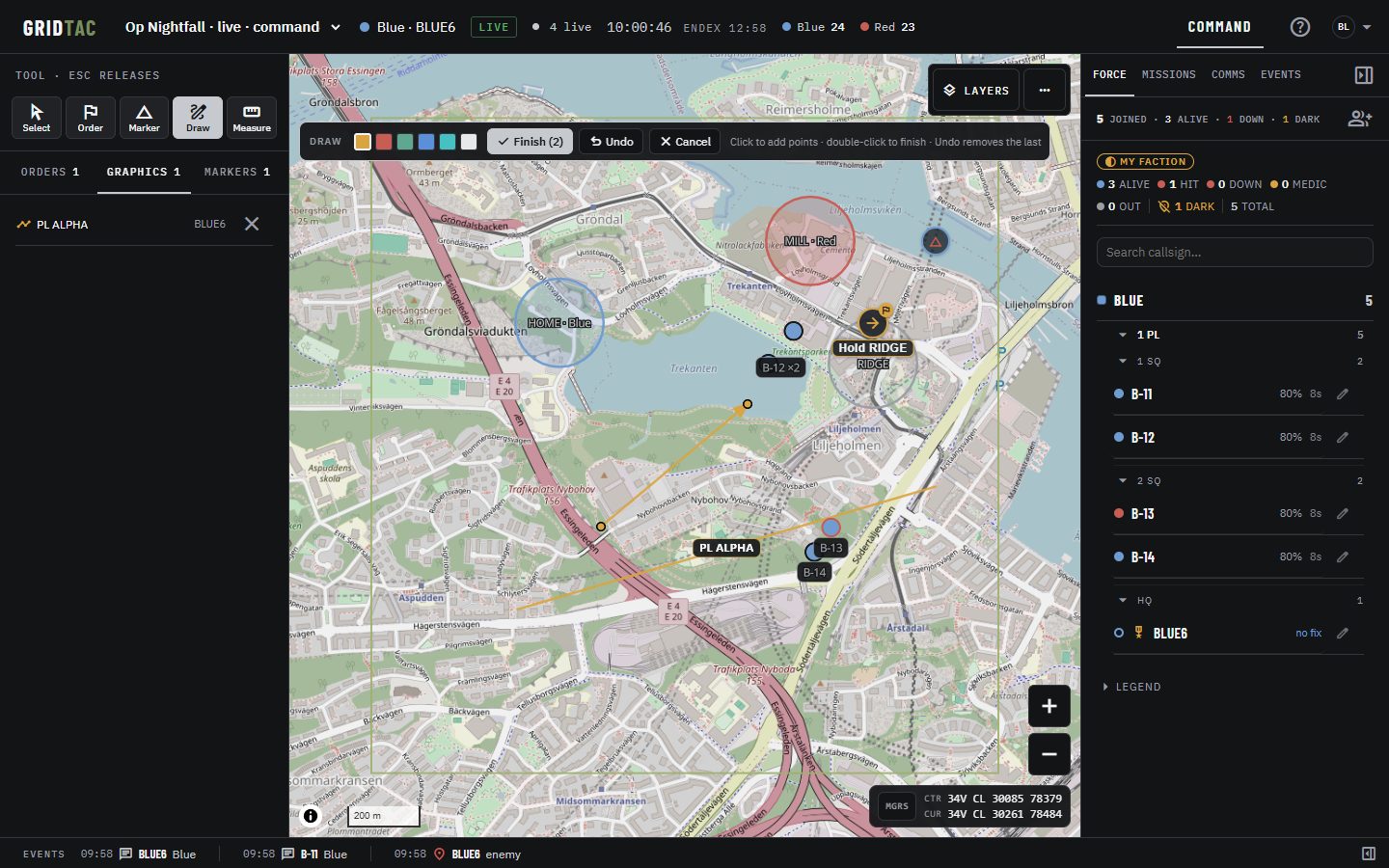
Draw gives a line, an area, an arrow or a circle, for a phase line, an objective area or an axis of attack.
- Click the map for each point.
- Right-click undoes the last point, and a double-click finishes.
- The bar above the map has the colours, Finish, Undo and Cancel.
You can give the drawing a label. Your own side sees it.
Measuring
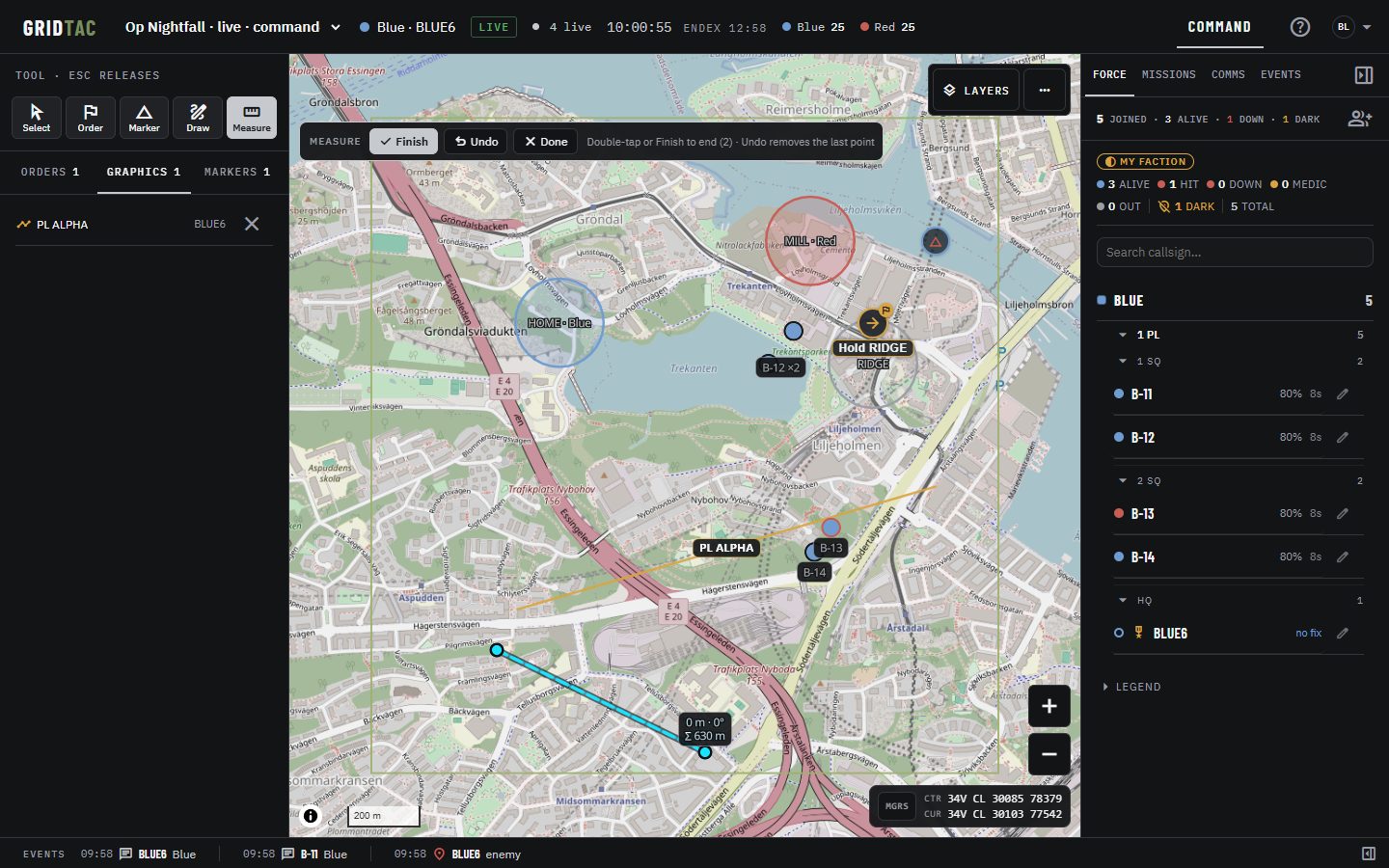
Measure gives a distance, an area or a range ring. Measurements are yours alone: nobody else sees them, and they are not saved with the game. Clear all removes them.
The map: layers and more
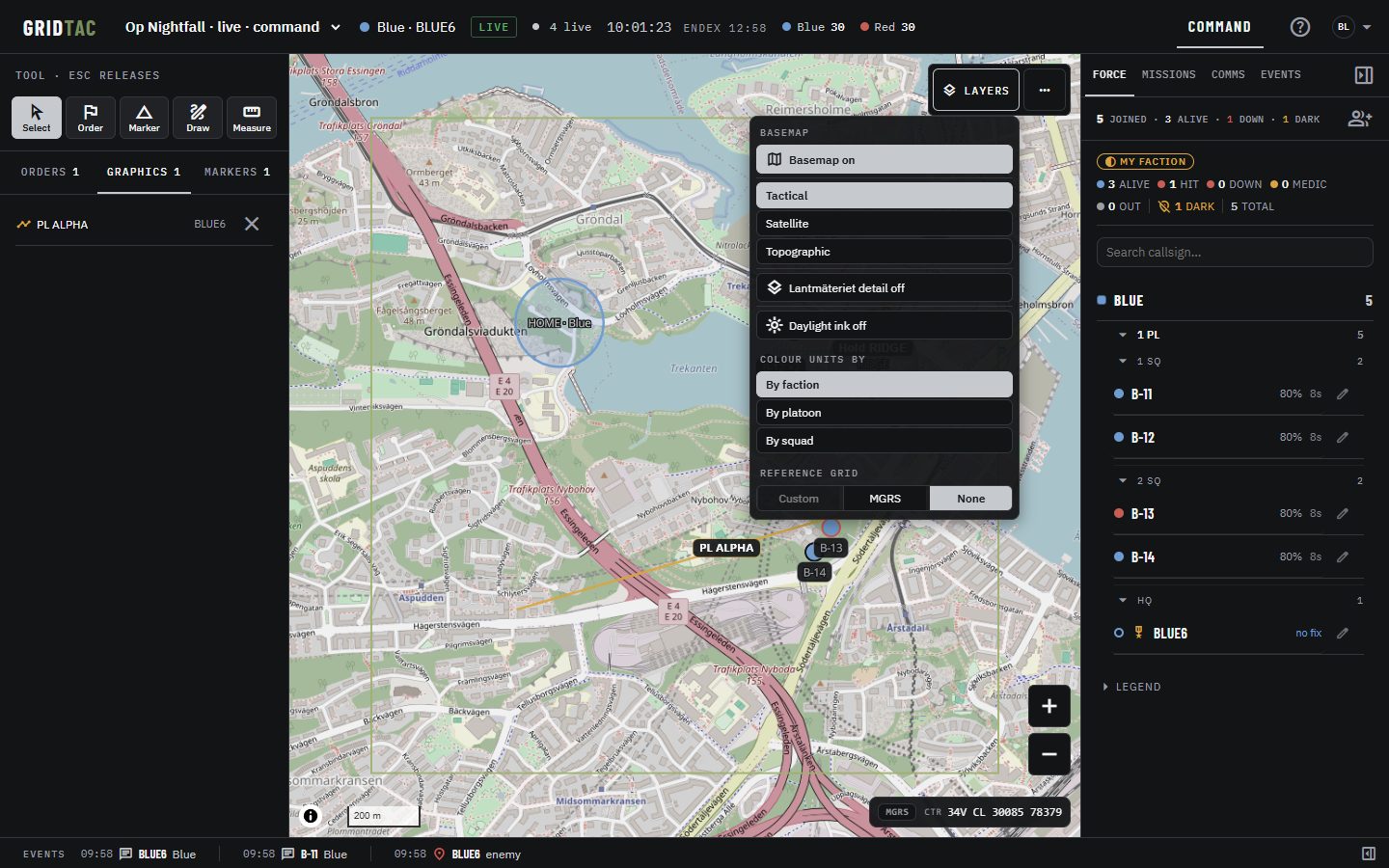
Layers, in the map's corner, changes only your own view:
- the base map, and Lantmäteriet's detailed map in Sweden
- a daylight style for bright screens
- the Game Master's overlay image
- colouring the players by side, platoon or squad
- Acknowledged orders: orders a unit has answered WILCO, shown dimmed (off by default)
- the reference grid (the game's own, MGRS or none) and where its labels go
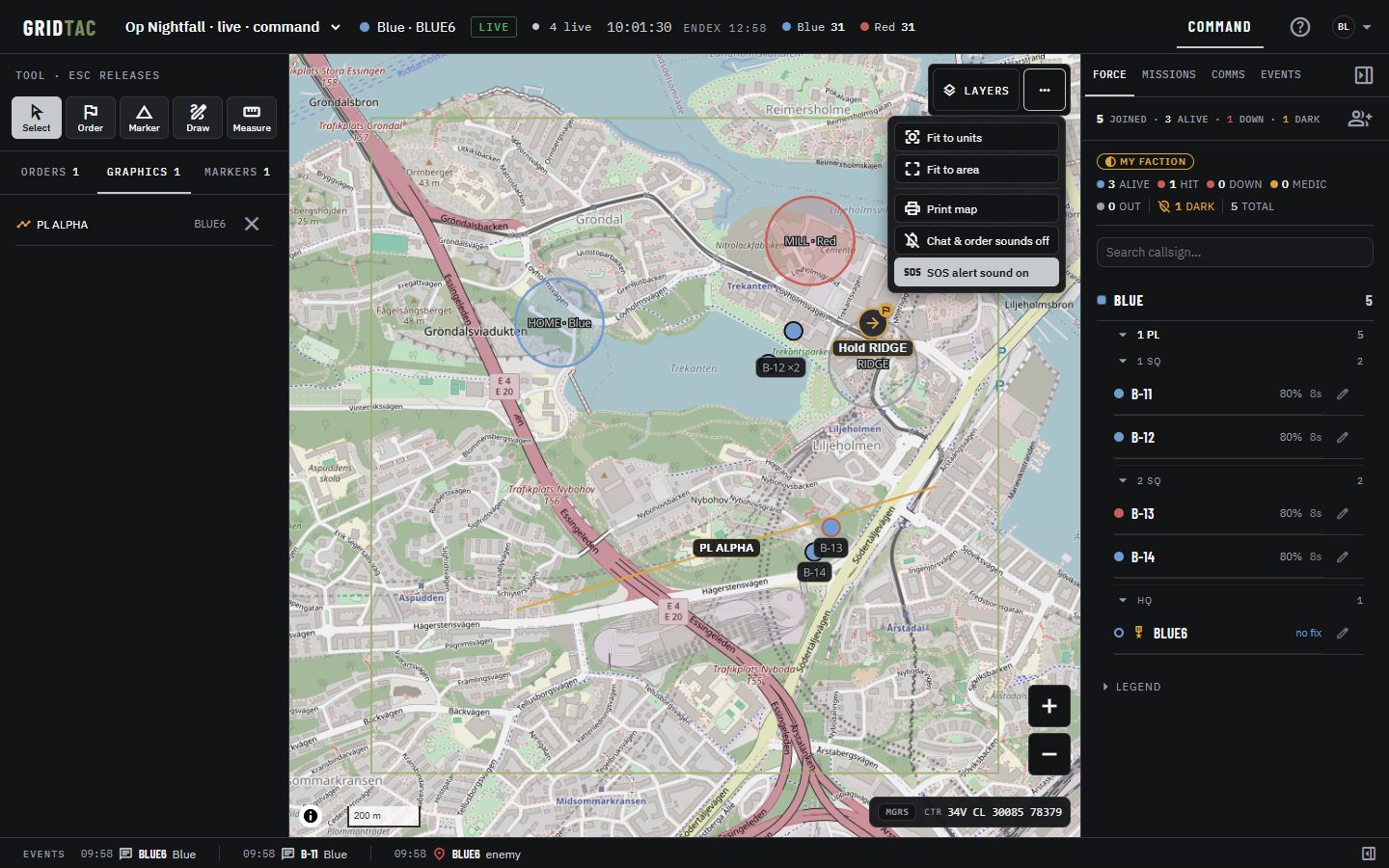
More:
- Fit to units or Fit to area.
- Print map: an A5 PDF of the map with the grid, the zones and the players, to hand out or put in a map case. Markers, orders and labels are not printed.
- Sounds for chat, orders and SOS, on or off.
The coordinate readout in the corner toggles between MGRS, latitude and longitude, and the game's own grid.
Force
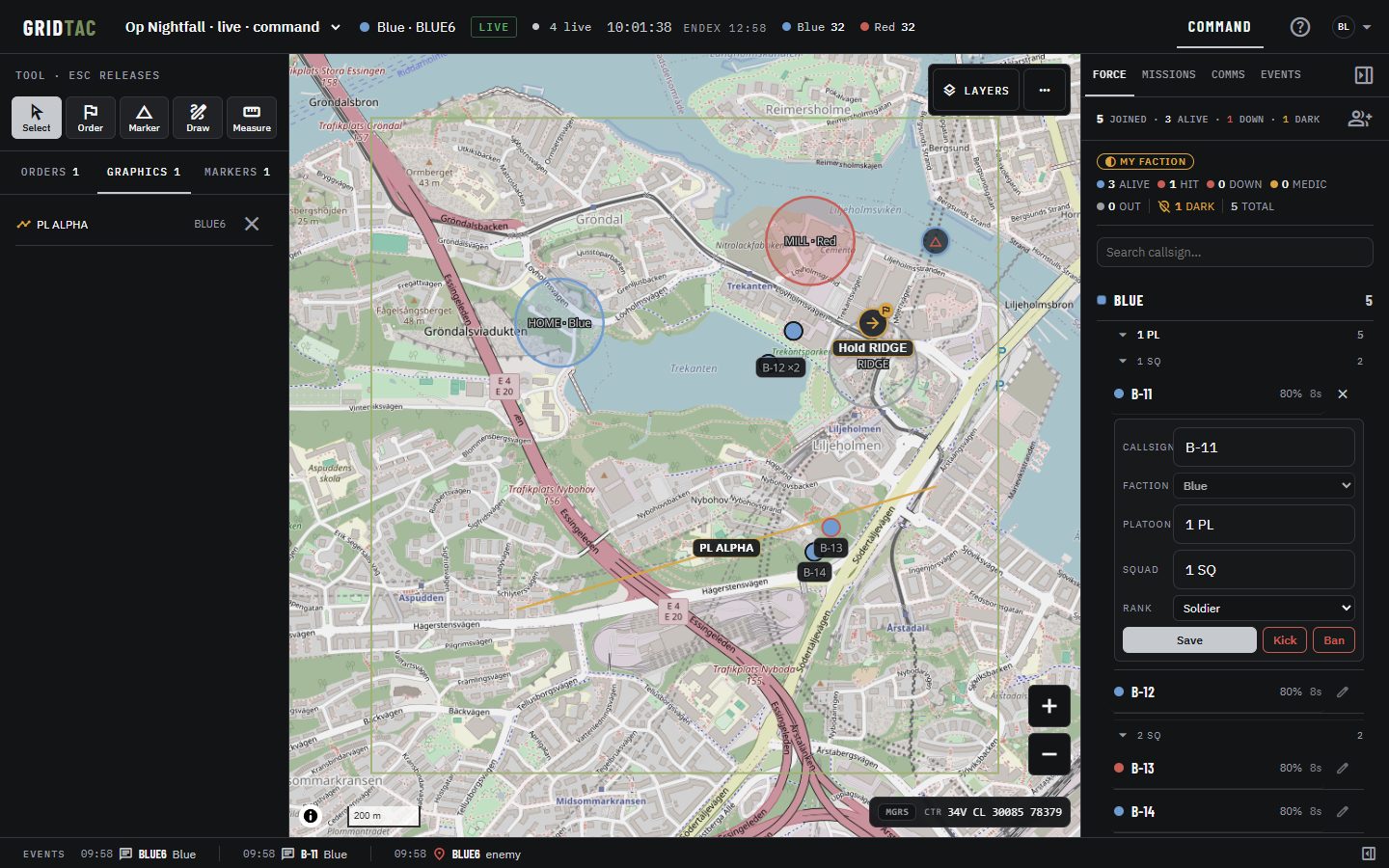
Force lists your side by platoon and squad. At the top is a tally: joined, alive, down, and dark (stopped reporting). Search by callsign, or filter by side. Click a player to find them on the map.
Manage on a player lets a commander:
- change their callsign, platoon, squad and rank
- make them a map operator, when the game allows map operators
Only the Game Master can move a player to another side, or make or unmake a commander.
Invite players, the icon at the top of Force, makes an invite for your side: a PIN, a QR code and a link. It works like the Game Master's invites, with two limits: the invite is always for your own side, and only for ranks below your own.
Missions, UAV and EMP
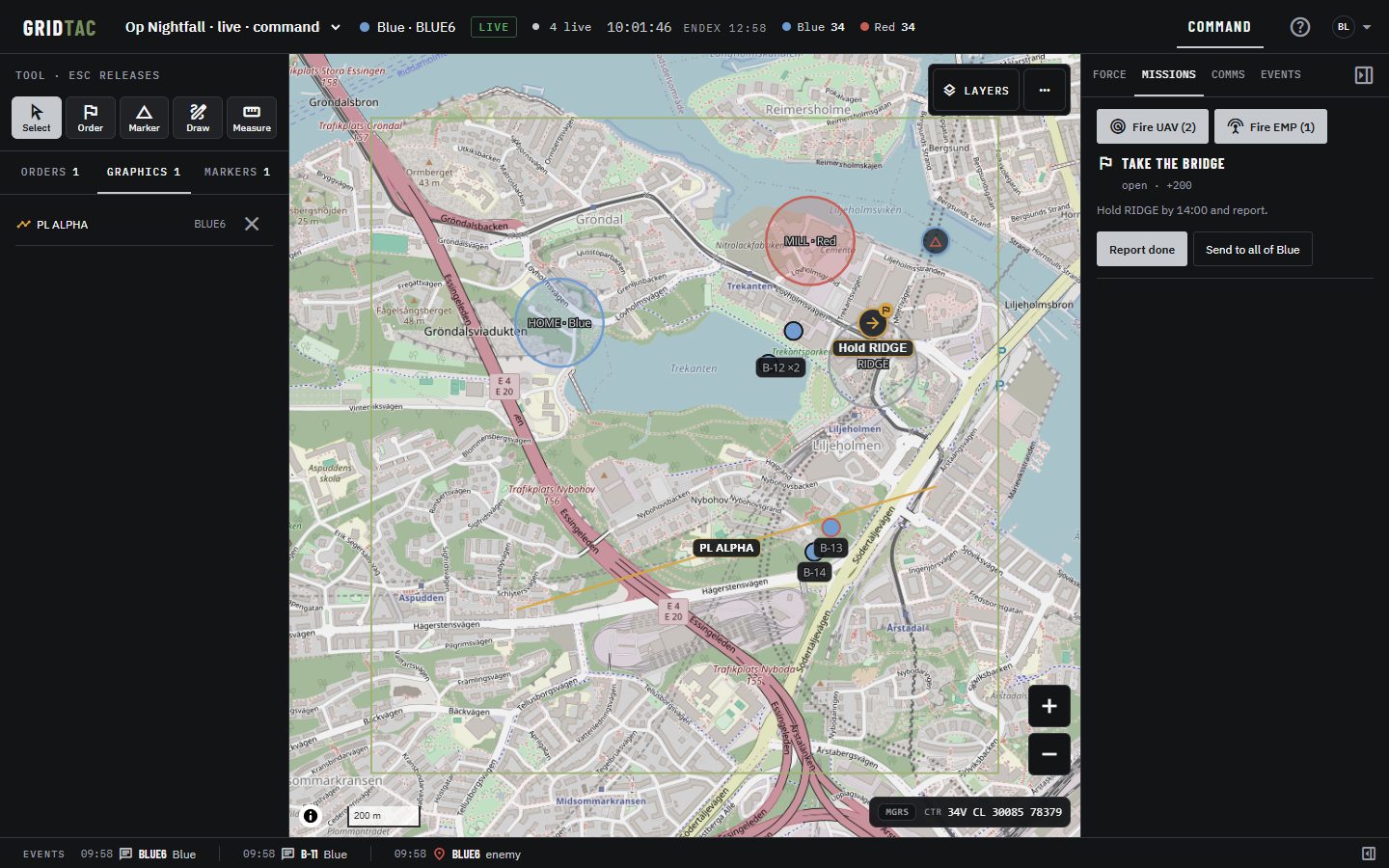
Missions is for commanders.
Missions from the Game Master:
- A mission shows its task and its reward.
- When your side has done it, Report done. The Game Master approves it and the points are paid.
- Send to all of Blue passes a commanders' mission on to your whole side.
UAV and EMP: what the Game Master has given your side is in stock here.
- A UAV shows you the enemy for a while.
- An EMP blinds the enemy's map for a while.
Fire asks where: over the whole enemy side, or around a zone with a radius. While one runs, the map draws it as a circle with the time left, and the top bar counts it down. A UAV is shown only to the side that fired it; an EMP also to the side it hits.
Comms
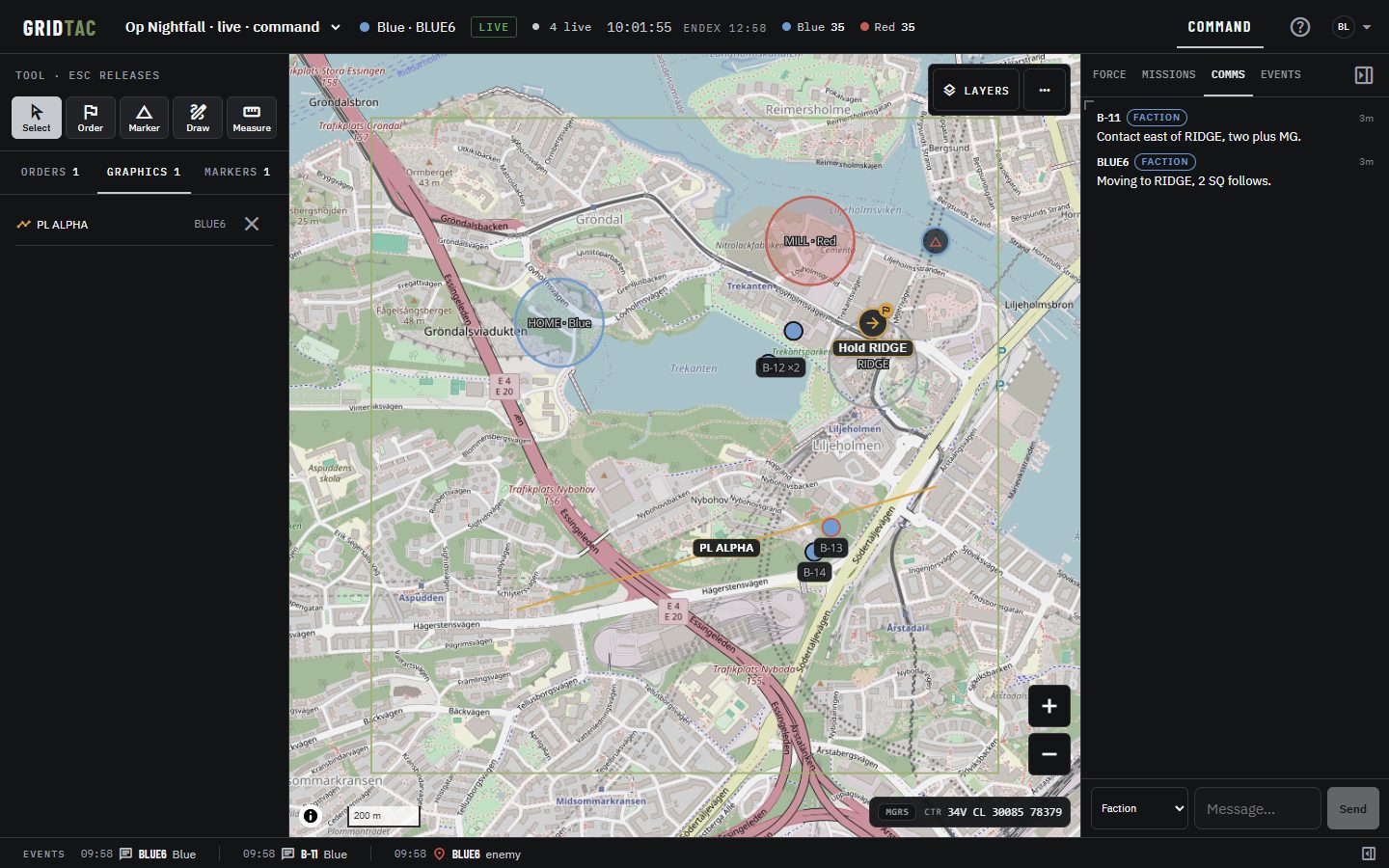
Comms is the game's chat. Send to:
- All
- your Faction
- your Squad
- the Commanders of every side, as a commander
- Direct: one person. A second list picks who: the Game staff, or a player on your side.
Nobody else on the side sees a direct message, not even another commander. The Game Master, who sees the whole game, can. Inside a side, a leader has to be at one end: two plain players cannot write to each other directly. Direct messages are labelled "Direct" with the other person's callsign, and clicking one sets up your reply to them.
Each message can be found on the map: it was sent from where the sender stood.
Events
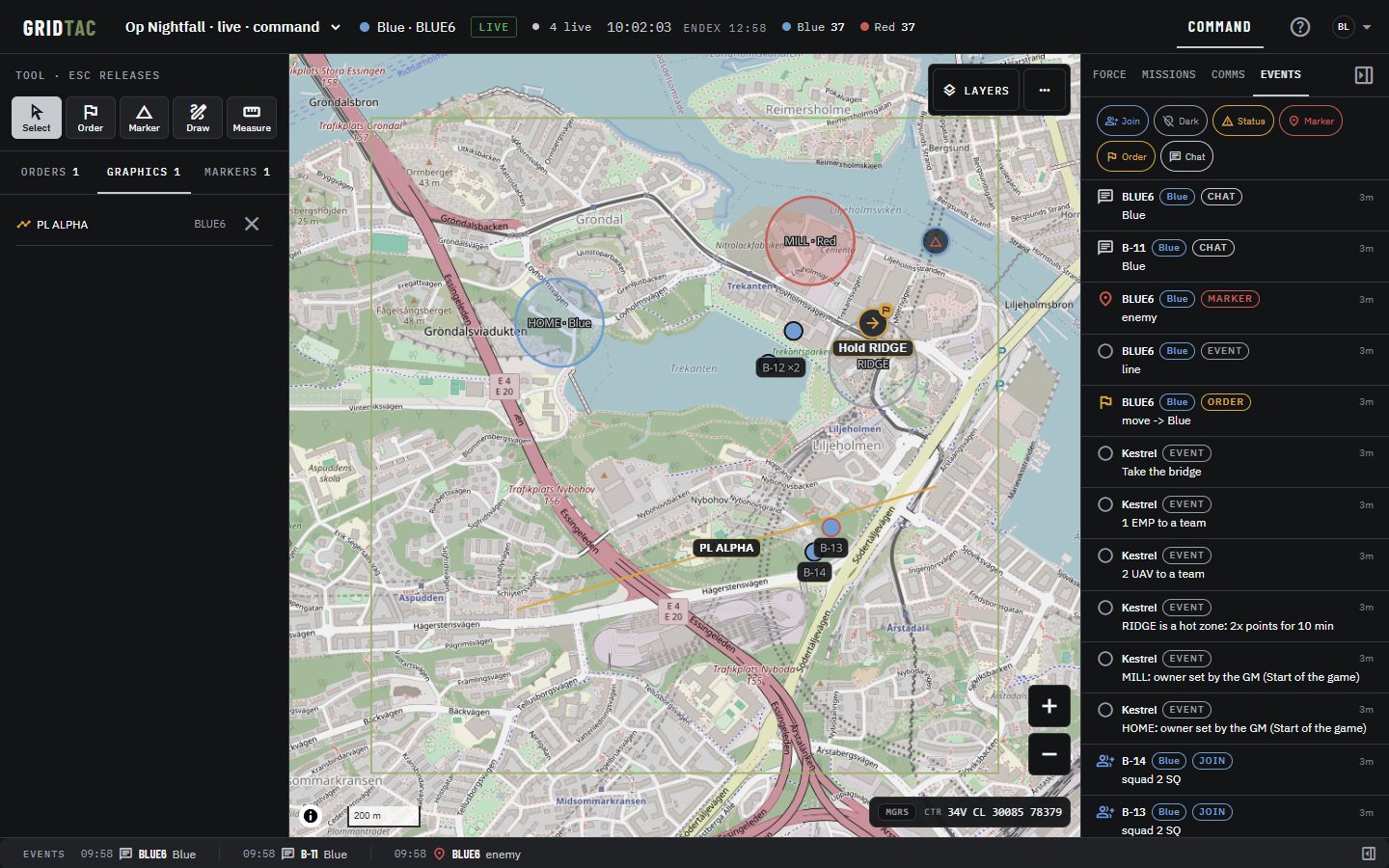
Events is the game's recent history as your side may see it: joins, players going dark, hits, markers, orders and chat. Filter it by type. The line at the bottom of the screen shows the latest event; click it to open the tab.
SOS
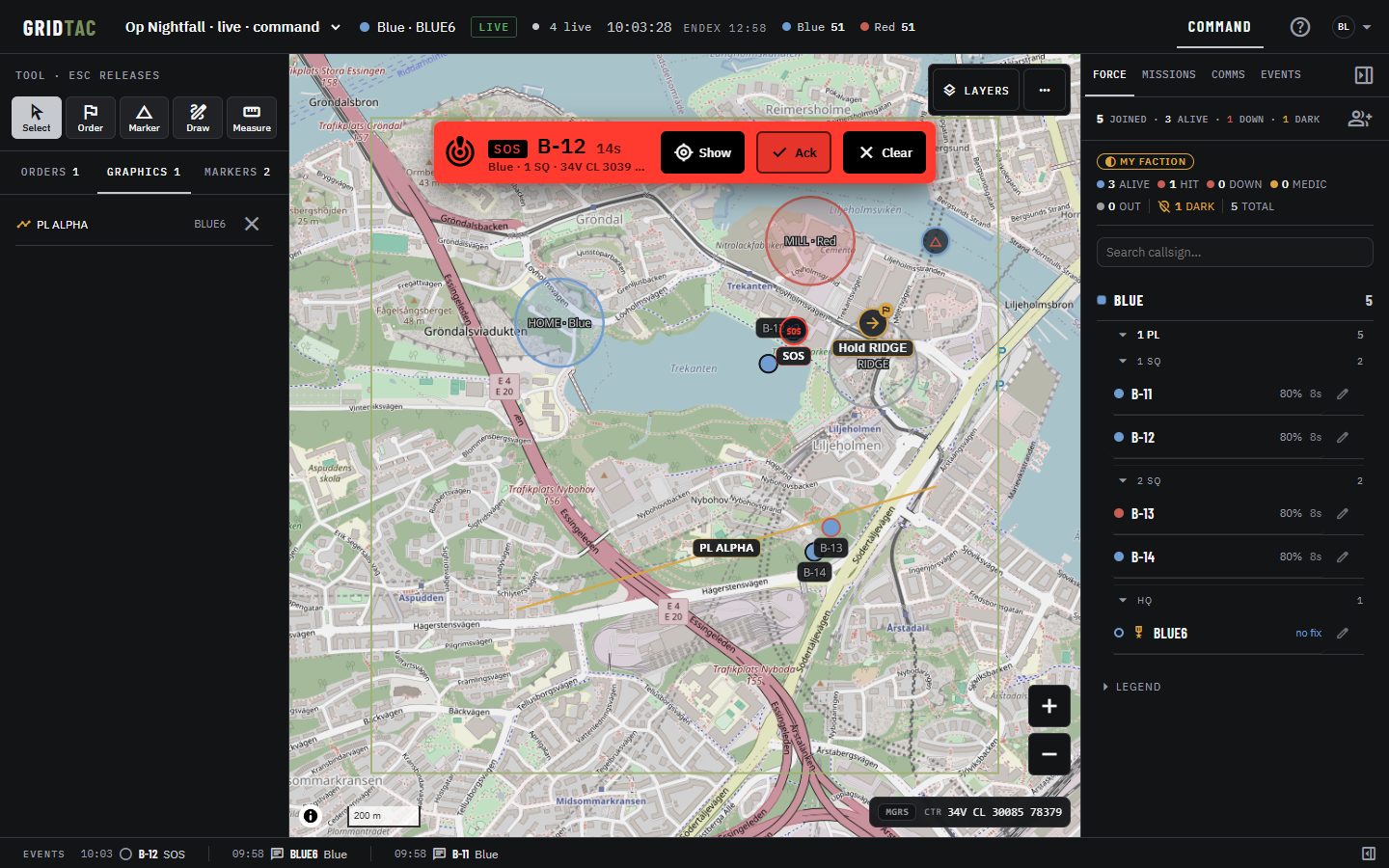
When a player on your side sends an SOS from the app, a red banner and a sound tell you.
- Show centres the map on them.
- Ack tells your own screen you have seen it.
- Clear takes the SOS down for everyone, once help is on its way. A commander or the Game Master can do this.
- Acknowledge all handles several at once.
The sound can be turned off under More.